Update and manage
Everything after the first publish happens in two places: the Shortcuts page's List view, where your org's shortcuts live, and the builder of the workflow behind each one, where you edit, publish and share. Opening a shortcut from the list takes you to its builder.
The list view

Each row shows how many times it has been published (or Unpublished), a credit estimate per run, an Org tag when it is shared org-wide, created and updated dates, and a menu with Archive and Restore. Archived shortcuts sit behind Show archived.
Shortcuts a teammate shared with the whole workspace appear here too, tagged shared with your organization. Those rows do not open, and Archive and Restore belong to the owner alone.
Edit and republish
Edits do not reach anyone until you publish them. As soon as the workflow differs from what you published, a banner appears telling you that everything using the shortcut keeps running the published version until you publish again. Any change counts: a prompt tweak, a remapped variable, a run condition, a renamed step, a cache toggle, a reorder. The banner stays until you pick one of its two buttons:
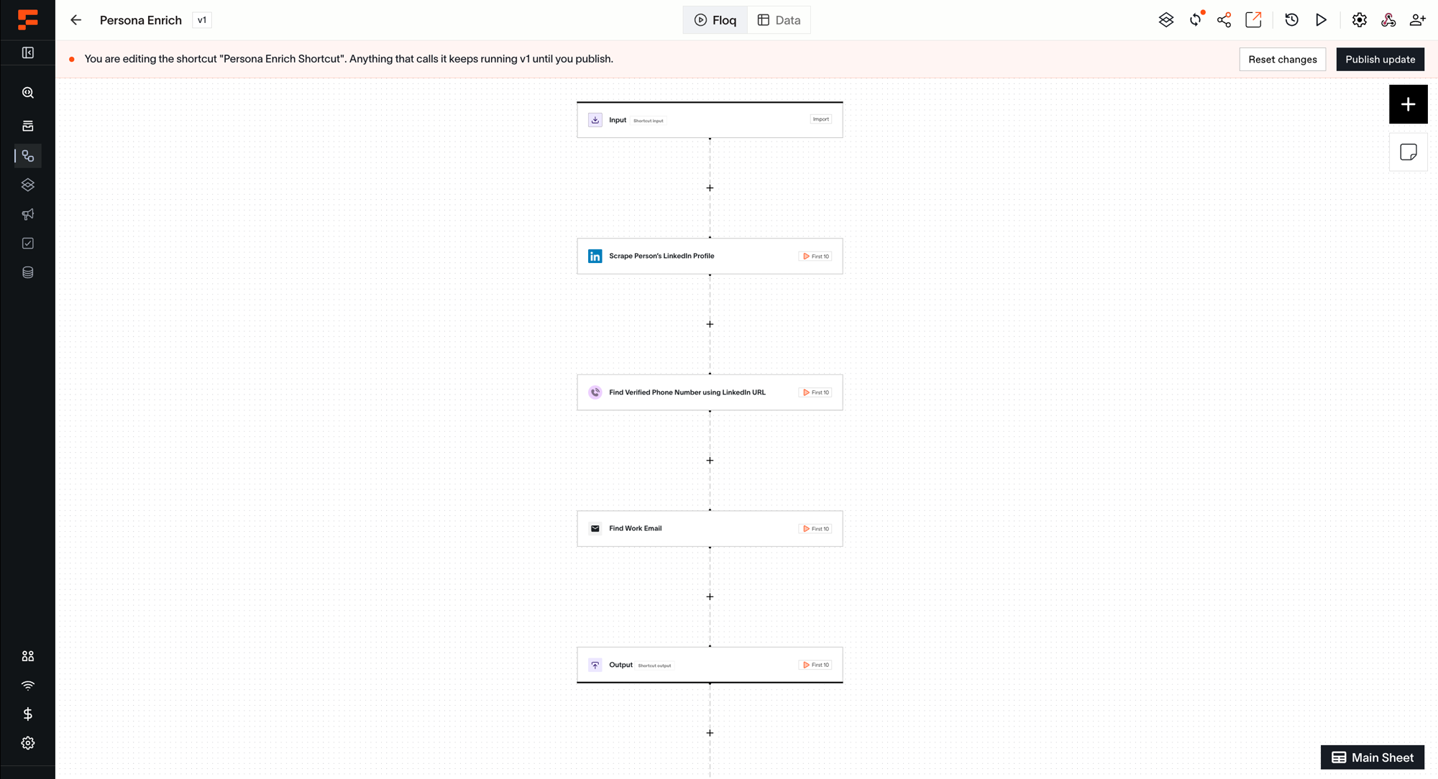
- Publish update publishes what is on screen. Everyone gets it from their next run.
- Reset changes puts the workflow back to what you last published, after a confirm. Unpublished edits are gone for good; nothing stores them.
Once a shortcut is published, the publish drawer is titled Update Shortcut and adds a switch to hide the shortcut from the Shortcuts page.
Careful
Two people publishing at once: the second sees "Another publish is in progress for this shortcut. Try again in a moment."
Changes that break the people using it
Three changes break the workflows and columns already using your shortcut:
- removing an output they may use,
- adding a new required input without a default,
- making an existing input required without a default.
Publishing one of these stops on a confirm titled "Publishing this version breaks callers". It lists each problem and everything affected: workflow steps by name (draft-only ones flagged), ackDB columns by segment. Publish anyway goes through; columns for a removed output stay but stop filling.
Everything else is safe: new optional inputs, required loosened to optional, renamed labels, reordering, and any change to the steps in between. Users pick up additions the next time they open the step or drawer.
One trap: an input's identity is its column, not its name. Renaming an input breaks nobody. Deleting one and recreating a similar one counts as a removal plus a new required input. Rename, do not recreate.
Versions
The history icon (Shortcut versions) lists every version, newest first: who published it, when, how many inputs and outputs it had, and an estimated credit range per run.
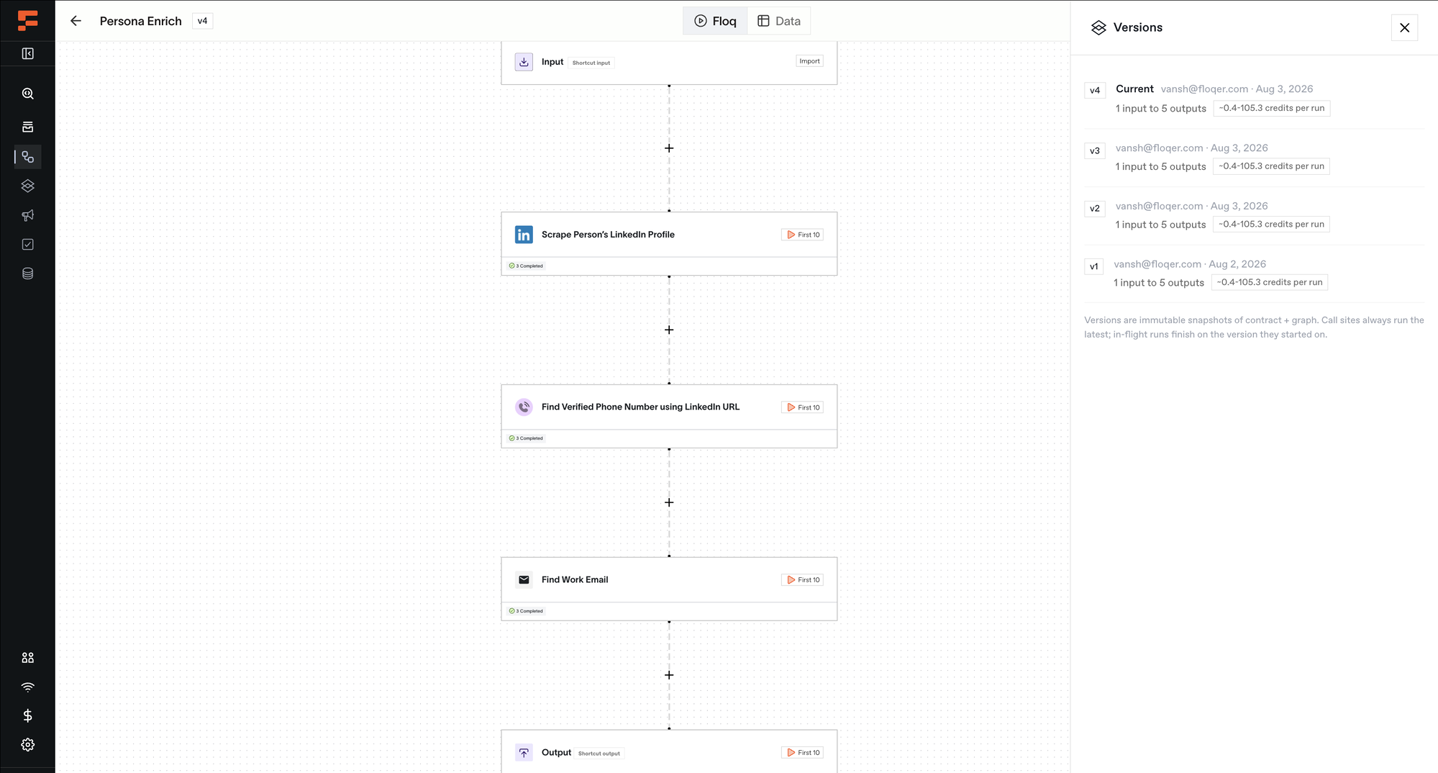
Versions are frozen snapshots. Everyone always runs the latest one; runs already going finish on the version they started on. There is no rollback: Reset changes only returns the canvas to the latest published version. To bring older behavior back, rebuild it on the canvas and publish it as the next version.
Test runs
Two ways to try your shortcut yourself: add a row in its workflow's Data table, like testing any workflow, or click the builder's play icon (Test run this shortcut) to fire one run and watch it complete. Both are real runs and use credits, which is the point: you see exactly what your team gets.
Run history and statuses
Every run, from every place, lands as a row in the workflow behind the shortcut, so its Data tab is the run log. People running from the Shortcuts page or the extension also get the run page's History tab for their own runs and batches.
| Status | Meaning |
|---|---|
| Running | Still going. |
| Completed | Finished; the outputs are filled in. |
| Skipped, condition not met | A run condition filtered the row out. Nothing went wrong, nothing was charged. |
| Failed | The run errored; the error is shown beside the status. |
| Out of credits | The workspace ran out of credits mid-run; comes with a link to top up. |
| Stopped | Stopped by a person before finishing. |
| Timed out | Ran past the time limit. The floor is 30 minutes, widened automatically when the workflow contains Delay steps. |
A retried run replaces its earlier attempt, which is hidden from every list.
Who sees whose runs
- Runs from the Shortcuts page and the extension, batches included, are personal: teammates see only their own.
- The owner and org leads see everyone's runs and can export any batch.
- Runs started by workflows, ackDB columns and the API show in the workflow's Data tab, visible to anyone who can open that workflow.
Credits
A run costs what the workflow's steps cost; the shortcut adds nothing. Runs refused before starting (a missing required input, an archived shortcut) and rows skipped by a run condition cost nothing. Watch the two multipliers: a 10,000-row file is 10,000 runs, and an ackDB refresh re-runs every record on every tick.
Sharing
Everything lives in Share Shortcut, behind the share icon in the buttons at the top right of the workflow. It has two parts.
General access, the select at the top, decides whether the shortcut is shared with the whole workspace:
- Restricted: only you and the people listed underneath.
- Entire organization: everyone in the workspace can find and run it, everywhere it runs.
Individual access, underneath, grants one person at a time. Add them by email, then set the row:
- Can use: they can run it everywhere it can be run (the Shortcuts page, the extension, Call Shortcut steps, ackDB columns). It never opens the workflow behind it.
- Can edit: everything "use" allows, plus the workflow itself: canvas, publishing, reset. One grant covers both, because an editor who could not republish would leave everyone stuck on a stale version. It is the same grant as sharing the workflow, so it shows up in both places. A User cannot be given it: the role never opens a workflow, so the modal offers them Can use only.
- Remove: takes the grant away.

One setting, two names: the modal calls it Entire organization, and the List view tags the same shortcut Org.
What Entire organization gives a teammate
The shortcut appears on their Shortcuts page, and in the browser extension if you turned a trigger on in the publish drawer. They can run it, and their runs stay their own: history, batches and exports are per person.
It does not make them an owner. They cannot open the builder, edit, publish, share, archive it, or save their own input defaults on it. On their Shortcuts page the row is tagged shared with your organization and does not open.
Individual access disappears from the modal while Entire organization is selected, because everyone already has use access. Nothing you granted is deleted: switch back to Restricted and every grant is still listed.
Careful
While general access is Entire organization, removing one person's individual access does not revoke their access, and the modal tells you so. The same holds for anyone who can edit the backing workflow, because that grant carries its own access. To actually cut someone off, set general access back to Restricted first, then remove them.
On top of all of it: the owner can always edit, publish, archive and see everyone's runs, and org leads can do the same on any shortcut they can see. A shortcut left on Restricted that nobody shared stays invisible to org leads too. Sharing never crosses organizations, and an API key is unaffected by general access: it reaches only the shortcuts shared with that person directly.
Two things to watch:
- Narrowing Entire organization back to Restricted is checked like an archive: every ackDB column, and every Call Shortcut step outside the shortcut's own workflow, blocks it and is listed. Steps inside that workflow are the only exemption; who owns the calling workflow makes no difference.
- Removing one person's individual access has no such check. Their steps and columns simply start failing, with no warning list. Before revoking, look at what they built.
Archive and restore
Archive retires a shortcut: it disappears from the Shortcuts page and the extension, and new runs are refused as archived. Archiving one that is still in use stops with a modal listing every workflow step and ackDB column pointing at it; Archive anyway proceeds, and those steps and columns fail until they are removed or the shortcut is restored.
Archiving also pauses the shortcut's ackDB columns. Restore brings the shortcut back, but paused columns do not resume on their own; re-enable them from the ackDB side once the shortcut is healthy.
Archive is retirement, not detachment. There is no delete and no unpublish: an archived shortcut keeps its versions, keeps its workflow, and keeps the no-branching rule on that canvas. The only way back to a plain workflow is duplicating it; the copy has no shortcut.