Run a shortcut
A published shortcut can be run from six places: the Shortcuts page (one at a time, or a whole file of rows), the Chrome extension, another workflow, an ackDB column, the API, and an AI assistant connected over MCP. The run is the same underneath; what differs is how you start it and where the result shows up.
What happens on every run
- Someone or something starts a run: a card on the Shortcuts page, the extension button, a file upload, a Call Shortcut step, a record entering an ackDB segment, an API call, or an AI assistant.
- The inputs are checked first. A run missing a required input, or aimed at an archived shortcut, never starts and never costs credits.
- The run executes as a row in the workflow behind the shortcut, so that workflow's Data tab is the run log.
- When the run finishes, the output fields become the result.
- The result shows up where the run started: fields in the extension panel, columns in the calling workflow, a value on the ackDB record, JSON from the API.
Runs always use the latest published version of the shortcut. Runs already going finish on the version they started on.
From the Shortcuts page
The Shortcuts page lists every published shortcut as a card. Open one for a run page with three tabs:
- Single Input. Fill in the inputs and click Run Shortcut. The status updates in place; outputs appear when it finishes. Set Defaults pre-fills inputs you reuse, Run Another clears the form.
- File Upload Input. Run a whole spreadsheet at once, see Run a file of rows.
- History. Your past runs, single and batch, with live status.

Run a file of rows
Pick File Upload Input, then Select a file or drop here. Excel, CSV and TSV files can contain up to 10,000 nonblank source rows. For CSV files, validation stops as soon as it can confirm that the cap has been exceeded.
- Columns are auto-mapped onto the inputs, with sample values so you can check each match. Fix any mapping with the dropdowns; for a multi-sheet Excel file, pick the sheet first.
- Click Run. A file problem (unreadable, empty, over the row cap) stops the whole upload before anything starts, and nothing is spent. Once it starts, each row is its own run, one failure does not stop the others, and a toast confirms how many were queued.
- The History tab tracks the batch with a status roll-up per upload. Open the batch to inspect its runs or download the results.
Download batch results
A file upload always creates one shortcut run per source row. Under History > File Upload Runs, the download format depends on what the shortcut returns:
- Scalar outputs only: Download CSV returns one results row for each source row and shortcut run.
- One or more list outputs: Download Excel returns one
.xlsxfile for the whole batch. An uploaded CSV or TSV also downloads as an.xlsxworkbook, because expanded list results need separate sheets.
Batch exports include every run in the batch. If Floqer cannot retrieve all of them, the export fails instead of returning a partial file.
The Excel workbook contains:
- Runs: one row per source input and shortcut run, including the number of child rows returned by each list output.
- One sheet per list output: every child row returned across the batch, expanded under the configured CSV columns. Source Row records the source row's position in the original upload and stays consistent across the whole batch. The source input columns are repeated beside it so each row makes sense on its own.
This is a newly generated, normalized results workbook. It does not preserve the uploaded workbook's sheets, formatting, formulas or layout. It uses the shortcut's current input and output configuration when you download it.
Excel limits each worksheet to 1,048,576 rows and each cell to 32,767 characters. If results exceed either limit, the export fails with a clear error instead of returning a truncated workbook. Floqer generates the export before returning the download link, so large batches can take longer. The signed link expires after 15 minutes.
Uploads are personal: each teammate sees their own. The owner and org leads see and export everyone's (see who sees whose runs).
Download a list output as CSVNew
Some actions return a list rather than one value, for example every person found at a company. A shortcut can turn that list into its own CSV for each run.
- In the publish drawer's Outputs section, select the list directly from the step that produced it. Custom output fields and arbitrary JSON stay regular outputs; they cannot become CSV downloads.
- In the CSV columns panel for that output, keep the fields people need and use the arrow buttons to put them in order. That order becomes the CSV's header order. At least one column must stay selected.
- Publish or update the shortcut, then run it. When the list output completes, click Download CSV under that output.

The download has one row per item in the list and only the columns you selected. Missing values are blank, and an empty list downloads as a header-only CSV. A failed or malformed list output cannot be downloaded.
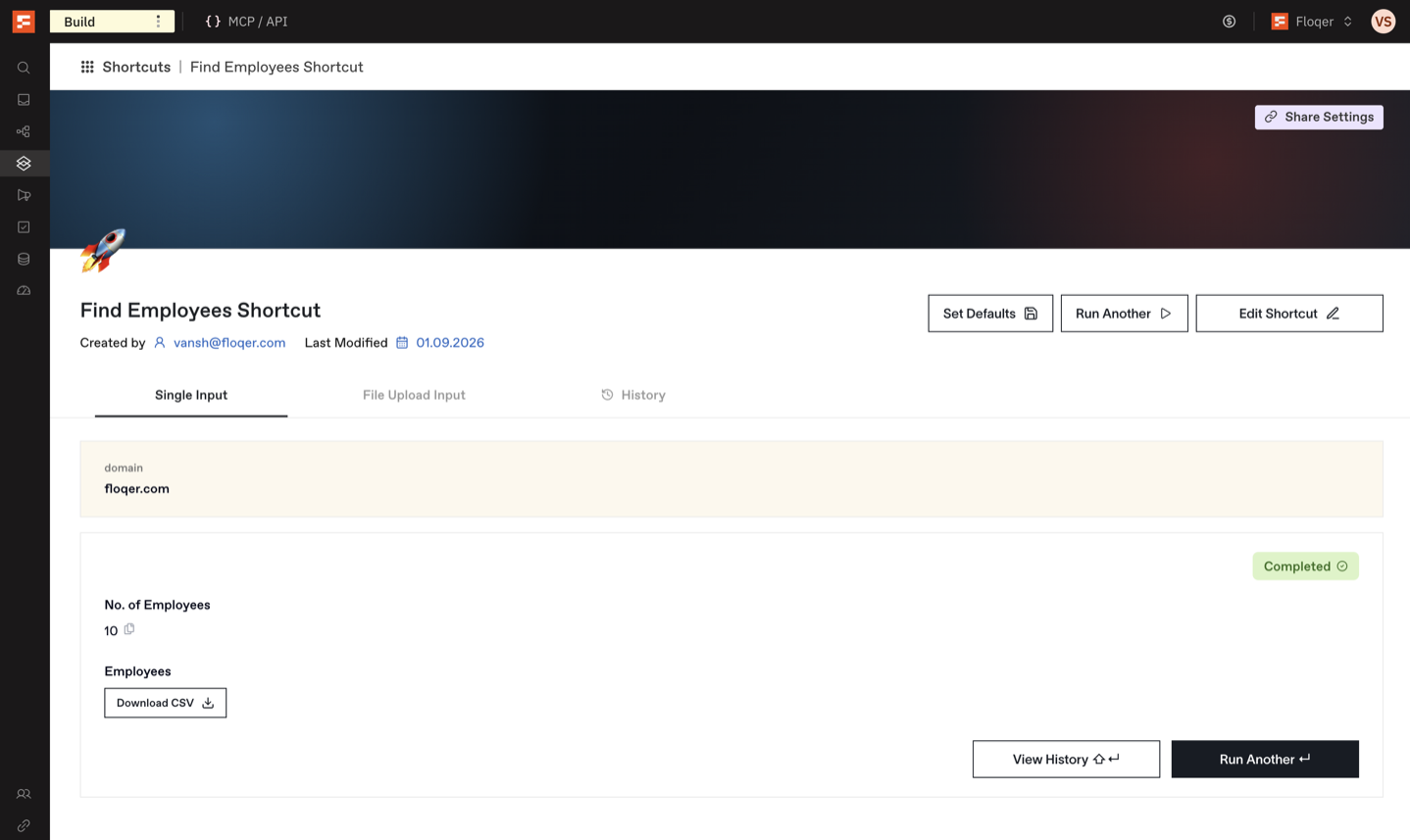
The button follows an individual run wherever its result appears: after a Single Input run, in Test run this shortcut, under History > Single Input Runs, and on each run row in the File Upload Output View. If a shortcut returns more than one list, each list gets its own Download CSV button. For these individual-run downloads, earlier runs keep the columns from the shortcut version they ran on.
Note
A per-run list-output CSV contains one list from one shortcut run. At the batch level, Download Excel packages every source run and its expanded list outputs into the normalized workbook described above.
In the Chrome extension
The toggles you set at publish time decide where the shortcut appears: the extension panel on LinkedIn.com, Sales Navigator, or both. The page fills in the main input (the person's LinkedIn URL) automatically, so most shortcuts are one click; any other inputs are asked for in the panel. Results show as fields in the panel.
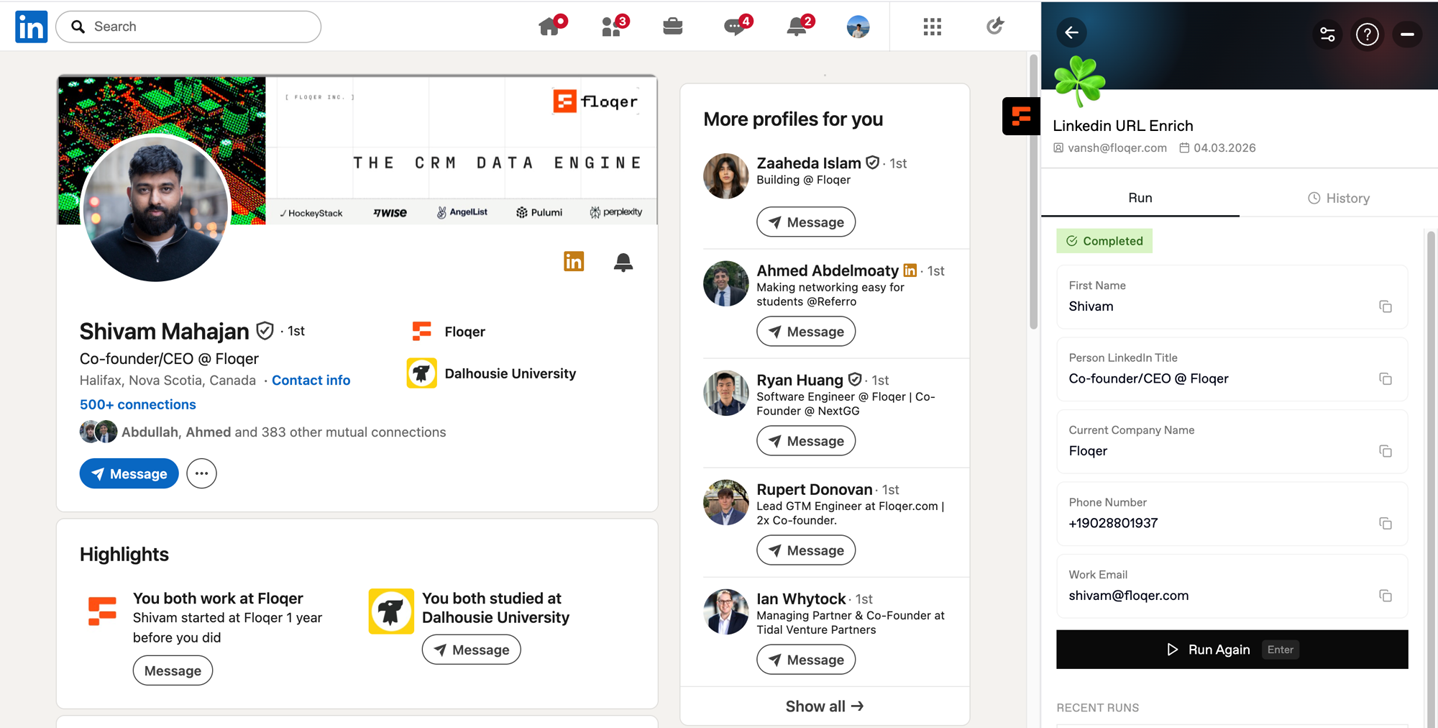
If you cannot see a shortcut on LinkedIn, check the three usual causes: its trigger was never turned on at publish time, it is hidden from the Shortcuts page, or it is archived.
From another workflow
Add the Call Shortcut step to any workflow and pick a shortcut. The step shows the shortcut's inputs and outputs:
- Inputs map onto the parent's columns and variables like any other action field. Optional inputs left empty fall back to their default.
- Outputs arrive as columns grouped under the shortcut's name.
- The shortcut run executes as its own row in its own workflow, and the parent cell fills when it completes. A failed run fails the cell, with continue-on-fail available like any action.
The step always runs the latest published version, and shows when the shortcut's fields changed: removed outputs are struck through (their columns stay but stop filling), new outputs offer an Add columns button, and an archived shortcut explains itself before any run fails.
Shortcuts can call shortcuts, with no depth limit. A shortcut cannot call itself: its own shortcut is hidden from the picker, and a direct self-call is refused before the run starts. An indirect loop is not blocked: A calling B while B calls back to A keeps spending credits until the runs time out or credits run dry. Keep chains one-way.
As an ackDB column
On an ackDB table (companies, contacts or people), add a column and choose Shortcut. The Run a shortcut drawer sets it up in three steps:
- Shortcut. Pick from your published shortcuts. It runs on every record in the segment, and again whenever the record changes.
- What it reads. Point each input at a column on the segment. The common case is handled for you: a shortcut whose only input is the record's id maps itself. Auto-matched mappings are flagged ("matched by name, check it"), and required inputs must be mapped before you continue.
- How often it updates. Read-only here: the schedule belongs to the shortcut and is shared by every column it fills. The Fill the records already here toggle decides whether every current record runs now (uses credits) or only records entering the segment from now on.
Click Add column. One column per output appears as records finish their first run.
Two requirements:
- The workflow behind the shortcut must write back to ackDB (an Update Record, Ingest or Merge step). Without one, the run succeeds, credits are spent, and the column stays blank. The drawer warns you before you map anything. On people tables the writeback must be Ingest, because Update Record targets companies and contacts.
- The refresh schedule is set on the shortcut, in its workflow's Sheet Settings under Schedule: Never (once per record), every 6 hours, daily, weekly, or a custom interval of at least 5 minutes.
Careful
A refresh re-runs every record of every column the shortcut fills, on every tick. Daily on a 10,000-record segment is 10,000 runs a day; check the cost before you set it.
Over the API
Three calls, authenticated with an API key (apps:read and apps:run scopes):
GET /api/v1/apps/{id}reads the input and output fields.POST /api/v1/apps/{id}/runstarts one run, inputs as{"input_data": {"<field>": "<value>"}}.GET /api/v1/apps/{id}/runs/{runId}polls until the run finishes; outputs are inoutput_data.
For many rows, POST /api/v1/apps/{id}/run/batch starts one run per row (up to 1,000 per call) and returns a batch_id to follow; the whole call is checked before any row starts. A field name the shortcut does not have gets a 400 listing the valid fields, and a missing value falls back to the input's default, then to empty: the API does not refuse a missing required input, so keep your rows complete. Full schemas, envelopes and rate limits are in the API reference.
From an AI assistant
Connect Claude, ChatGPT, Cursor or any other MCP client to Floqer and it can run your shortcuts for you, in the middle of a conversation. Ask for the shortcut by name and the assistant finds it, asks for anything it needs, runs it and reads the result back.
The assistant sees shortcuts under their old name, apps: list_apps to find one, get_app for its inputs and outputs, run_app to run it (this spends credits, like any other run), and get_app_run for the result. Setup and the full tool list are in MCP.