
Running on lists
Run the same shortcut for several people from a saved lead list or a people search in Sales Navigator. Each person gets their own run.
Choose a shortcut
Open your list or search results in Sales Navigator. Click the Floqer icon and choose a shortcut that's enabled for Sales Navigator.
If it needs extra inputs, open the input settings at the top right of the panel. Fill them in and click Save. Those values apply to every lead in this run. See Single runs for the input setup.
Run on a saved list
Choose how much of the list to run:
| To run | Do this |
|---|---|
| The current page | Leave the lead checkboxes clear. Click Run on current page. |
| Selected leads | Tick the leads in Sales Navigator. Click Run on Selected. The button shows how many you've selected. |
| The entire saved list | Clear any selected leads. Click the arrow beside Run on current page and choose Run on entire list. |

Run on entire list includes the leads on other pages too.
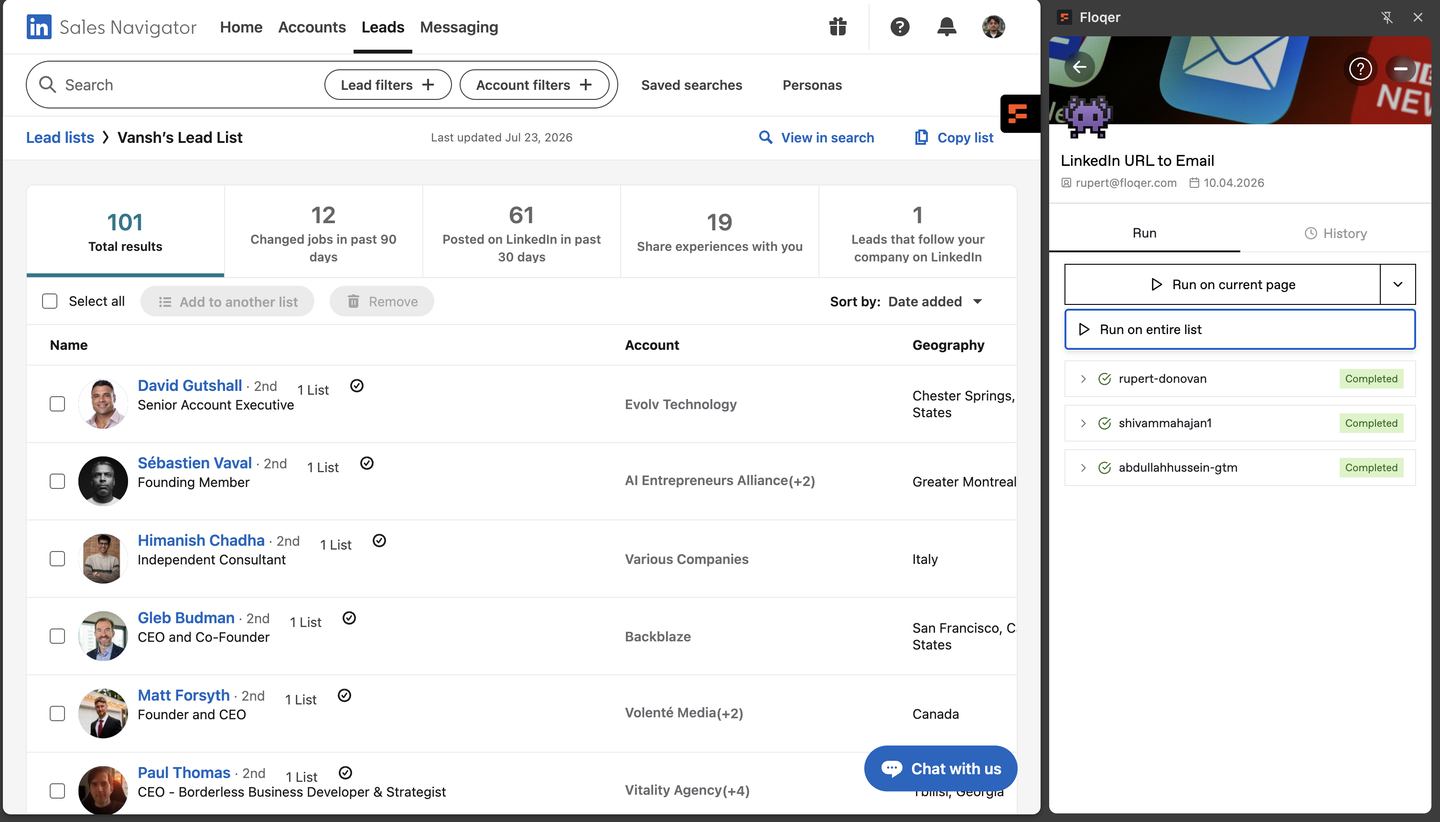
Each run can use credits. If you haven't tried the shortcut yet, start with a few leads.
Run on search results

Tick the people you want to run in Sales Navigator. Then click Run on Selected in the Floqer panel.
You need to select at least one lead. Until you do, the button says Select leads to run. Search results don't have an entire-list option.
Find the results
Keep the Sales Navigator tab open while Floqer gathers the leads. The panel confirms when the list or selection has been submitted for processing. The shortcut runs may still be in progress after that.
Open History in the extension to check individual runs and read their results. Each lead appears separately.
You can also view the batch in Floqer:
- Open Shortcuts and choose the same shortcut.
- Open History > File Upload Runs. This tab includes batches started from the extension.
- Open the batch to see its runs or download the results.