Single runs
Run a shortcut on one person or company and read the results alongside the page. If you haven't connected the extension yet, start with Installation.
Choose a shortcut
Open a person's LinkedIn profile, a LinkedIn company page or a lead's profile in Sales Navigator. Then click the Floqer icon in Chrome to open the panel.
Choose the shortcut you want to use. You can search for it by name. The labels on each card show what it returns, like a work email, phone number or account score. Pick one that's built for the person or company you're viewing.
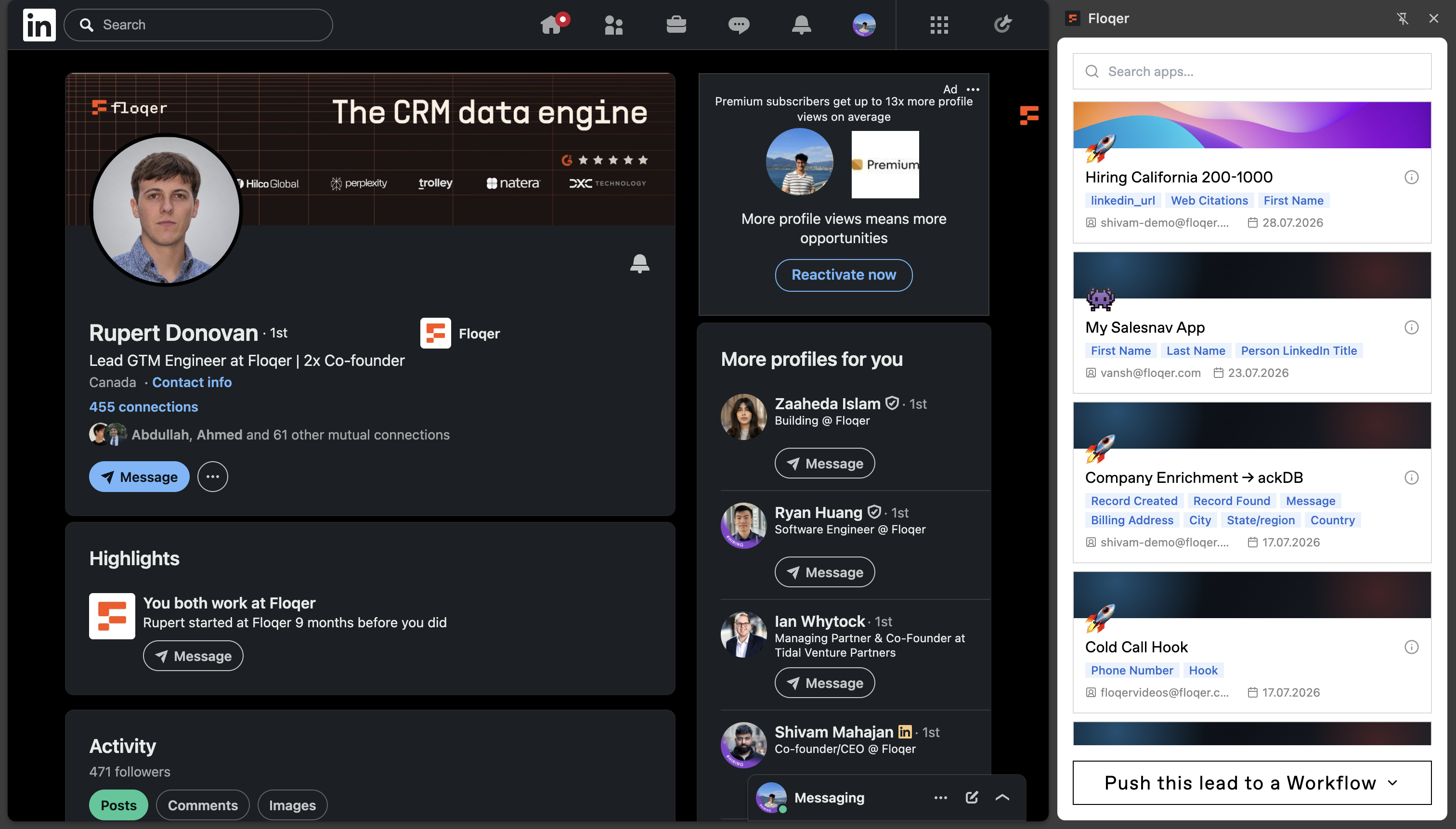
The extension fills in the page's URL for you. If the shortcut doesn't support the site you're on, the panel tells you. See Why is Run App disabled?.
Fill in any extra inputs
Some shortcuts need more inputs than a URL. For example, a shortcut that finds people at a company might ask for a job function.
If Configure Inputs opens, fill in what the shortcut needs and click Save & Continue.
To change these values later, click the input settings icon at the top right of the panel. Edit the fields and click Save.
Run and read the results


Click Run App. The status updates while the shortcut runs. When it finishes, the results appear in the panel. Click the copy icon beside a value to copy it.

To run again on the same page, click Run Again. This starts another run and can use credits.
To run on someone else, open their profile. The panel follows the page you're on.
To choose a different shortcut, use the back arrow at the top left.
Run on a Sales Navigator lead
Running on one lead in Sales Navigator works the same way:
- Open the lead's profile in Sales Navigator.
- Click the Floqer icon and choose a shortcut that's enabled for Sales Navigator.
- Click Run App.
On a saved list or a people search, you'll see the list buttons instead of Run App. See Running on lists.
Enable a shortcut for Sales Navigator
If Run App is disabled, the shortcut isn't enabled for Sales Navigator yet. The shortcut's owner can turn it on:

- Open the shortcut's workflow and open the publish drawer. For a published shortcut it's called Update Shortcut.
- Under Browser Extension Triggers, turn on Sales Navigator.
- Pick the input the page should fill in.
- Click Update Shortcut.
Find an earlier result
Recent Runs appears below the run area. Expand a run to read its results.
For more, open History. Click a run to see its results and the profile or company it ran on. Use Previous and Next to move between runs. You can also open the linked page from the result.
To run on several leads at once, see Running on lists.