Quotas
Introduction

To access quotas, go to Usage & Plan → Quotas.

Member quotas limit how many credits each member can spend per month from the organization's shared balance, preventing any single member from consuming it entirely. Every member can view their own usage; only admins can enable quotas and set per-member caps. Usage resets on the 1st of each month.
Careful
To use quotas, an organization admin must first turn them on for the organization and confirm the status shows QUOTAS ON.
Viewing current quota and usage
Every member, including admins, can view their own quota and usage in the Your credit usage panel at the top of the Quotas tab.
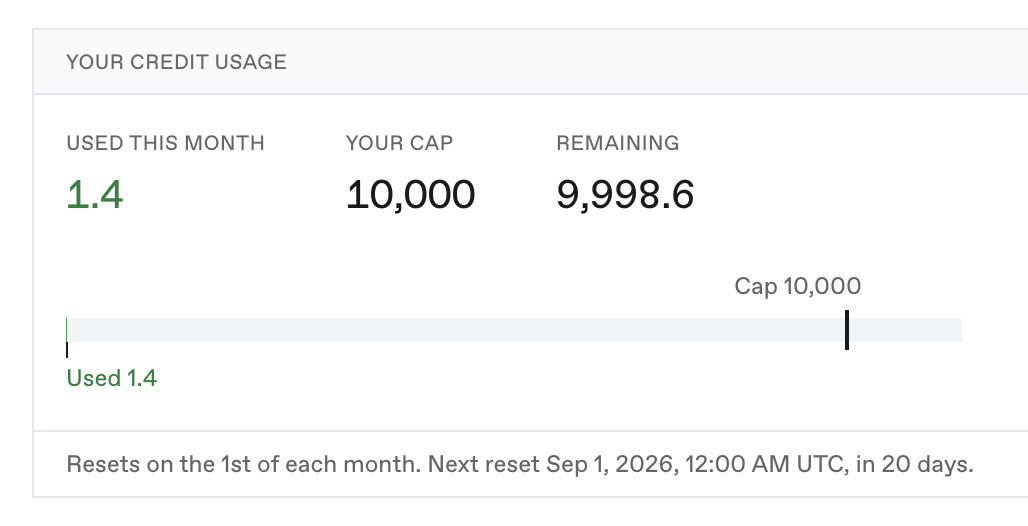
The panel reports three figures for the current month:
| Figure | Shows |
|---|---|
| Used this month | Credits spent so far this month. |
| Your cap | The monthly credit cap, or No cap when unlimited. |
| Remaining | Remaining credits left this month. |
Note
Used this month is measured from the start of the current month, or from when quotas were turned on and the member's cap was enabled, whichever is later. Spending before that point does not count toward the cap.
Managing Organization Quotas
Quota settings
The Quota settings panel controls whether quotas run and what the organization-wide default is. Only organization admins can manage quotas.

- Default cap: the monthly limit for members without their own cap. Enter a number of credits, or Unlimited for no default, then select Save settings.
- Turn off stops quota enforcement.
- Turn on starts quota enforcement.
Note
While quotas are off, usage is not tracked and no spend counts toward any cap. Turning quotas back on resumes counting from where it left off; spending during the off period is not counted.
Member table
Below the settings, a table lists every member with their usage and cap. It can be searched by email and sorted on each column.
| Column | Shows |
|---|---|
| Member | The member's email. |
| Role | Admin or Member. |
| Usage | Spend against the cap. |
| Cap | The member's monthly cap, with a Default tag when inherited from the organization default. |
| Remaining | Credits left before the cap. |
Setting a member's cap
Select Edit on a member's row to open the Member cap dialog, which offers three options:
| Option | Effect |
|---|---|
| Organization default | Follows the organization default, and moves whenever the default changes. |
| Unlimited | No cap, even if an org default is set later. |
| Custom | A cap for this member only, set in credits per month. |
Select Save cap to apply.