Global Shortcuts by Floqer Experts, Auto Topup your Credits, Queue Messages in Floqer Agent and Schedule Rate Limited Action Runs
There were so many common enrichments used across workflows and teams were spending time building them. We decided to package them as Global Shortcuts and maintain them so they improve with every change. This release also lets you top up credits automatically, pick the columns you export, queue messages while Floqer Agent is answering and schedule rate limited action runs.
Platform Features
3Global Shortcuts built by Floqer's GTM Engineers
To get an enrichment right you have to pick the right providers and put them in the right order. Then you add the conditions and test it before you trust the result. Not every team has someone to do that.

So the Floqer team has built them for you. We're introducing Shortcuts built and maintained by Floqer's expert GTM Engineers. They show up in your Shortcut gallery ready to run. You bring the input and get the result. There is no workflow to build and no logic to think about. We keep improving them and your next run always uses the latest version. They use your organization's credits and connections like any other Shortcut.
There are multiple ways to use a Shortcut. Here are two of them:
-
Without a workflow. Go to Shortcuts and select Floqer in the gallery filter. Open a Shortcut, fill in its inputs and click Run.
-

In a workflow. Click + in your workflow and open the Shortcuts tab. Pick one under Floqer Shortcuts and map your columns to its inputs. The results come back as columns for your next steps.
-
Auto Topup your credits when they run low
Every so often, enrichments running on a schedule would fail with "Out of credits". To prevent that from happening you can now set up auto top-up so you don't have to worry about why your data is not clean anymore. Floqer buys the credit pack you choose when your balance falls below an amount you set.
- Go to Usage and Plan, open the Plan tab and click Manage next to Auto top-up.
- Turn on Use auto top-up.
- In When my balance reaches select or type a balance between 2,000 and 50,000 credits.
- In Top up with select the credit pack to buy. Amount charged shows what each top-up costs.
- Add a card under Default payment method if you have not saved one. Then click Save.

Each top-up is charged to your default card and shows up as Auto top-up in your credit history. Every user with Admin access gets an email for each top-up.
- There is no daily limit. Floqer can top up several times in a row.
- Credits arrive once the payment goes through. Runs in the meantime can still fail for low credits. Set a higher balance in When my balance reaches if that happens.
- It turns itself off when a top-up cannot go through. That happens when the card is declined, a plan renewal payment fails, there is no card on file or the chosen credit pack is no longer sold. Users with Admin access get an email and the Plan tab shows why. It stays off until one of them turns it back on.
Note
Auto top-up is available to users with Admin access on free and self-serve plans.
Pick the columns you export
You often need only a few columns from a workflow table. Now you can pick the columns to include in a CSV or Excel export before you download it.

- Click Export on the Data tab and tick the columns you want. Hidden columns start unticked.
- Search for a column by name. Use All and None to select or clear the list.
- Click Export to CSV or Export to Excel. The export still follows your filters and selected rows.
- A green badge shows on Export once your file is ready. You have 24 hours to download it.
Note
Action outputs are grouped under their action and unticking an action removes all its fields. The selection resets to your visible columns each time you open Export.
Agentic Building
5Queue messages while Floqer Agent is answering

You had to wait for Floqer Agent to finish answering before you could send your next message. Now you can send it right away. Floqer Agent finishes the current reply and then works through your queued messages in order.
- In Floqer Agent type your message and click the send arrow next to Stop. It stays in the queue until the current reply finishes.
- In Slack mention Flo in the same thread while it's answering to queue a follow-up.
- Each message gets its own answer. You can queue up to 10 messages per conversation.
Add a Shortcut to your workflow headlessly
Your team already has a Shortcut that does the job and you want it as a step in another workflow. Now you can ask your agent to find a published Shortcut and add it for you. This works headlessly from MCP, APIs or any agentic platform. This enables you to take these actions:
- Pick the Shortcut. Your agent searches published Shortcuts by name and adds the one you want as a Call Shortcut step.
- Fill its inputs. Use values from your workflow's columns or values you enter directly.
- Use the results. The returned columns work as inputs for the next steps in your workflow.
For example you can ask "Add our company research Shortcut to this workflow and use the company domain column as its input."
Note
Choose a published Shortcut you have access to. A workflow cannot call a Shortcut built from itself.
See List Shortcuts and Add Action to Workflow in the API reference.
Set up Google Ads audience sync headlessly
Your agent builds the lead list and you want it to feed straight into your ads. Now you can ask your agent to add Google Ads: Sync Audience to a workflow. This works headlessly from MCP, APIs or any agentic platform.
- Choose the account and list. Ask your agent to list your connected Google Ads accounts. Pick an account and one of its Customer Match lists.
- Set the operation. Add leads to the list or remove them from it.
- Map the match identifiers. Use an email or a phone number with its country code, or first name, last name, country code and postal code together. Set the consent fields to match the consent you have for those contacts.
For example you can ask "Add a Google Ads audience sync step after qualification and add qualified leads to our customer list using the email column."
Note
Connect Google Ads in the Floqer platform first. The Customer Match list must already exist in Google Ads.
See Get Action Field Options in the API reference.
Run only the rows that match a filter headlessly
Your agent had to list the rows where an action failed and collect every row one by one before it could re-run them. Now you can ask it to run every row that matches a filter in one go. This works headlessly from MCP, APIs or any agentic platform.
- Filter the rows. You can filter by input column values, by an action's status or by when the row was added. These are the same filters you use to list rows.
- Run full rows or a single action. For example you can ask your agent to re-run only the rows where the email step failed.
Note
Filters work on input column values and not on action outputs. First 10 through the API now runs the ten newest rows like it does in the Floqer platform.
See Run Rows and Run Action in the API reference.
Change models during a Floqer Agent chat

Using a different model meant starting a new chat. Now you can change the model in an existing conversation and the new model picks up the same chat history.
- Click the model name below the message box and choose another model. Your next message uses it.
- Your choice stays when you close and reopen the chat.
- Models with higher costs use more of your Floqer Agent credit allowance.
Note
Wait for the current reply, queued messages and any pending approval to finish before changing models. Flo in Slack uses the default model and does not offer model switching.
Data & Integrations
3Enrich contacts with Lusha
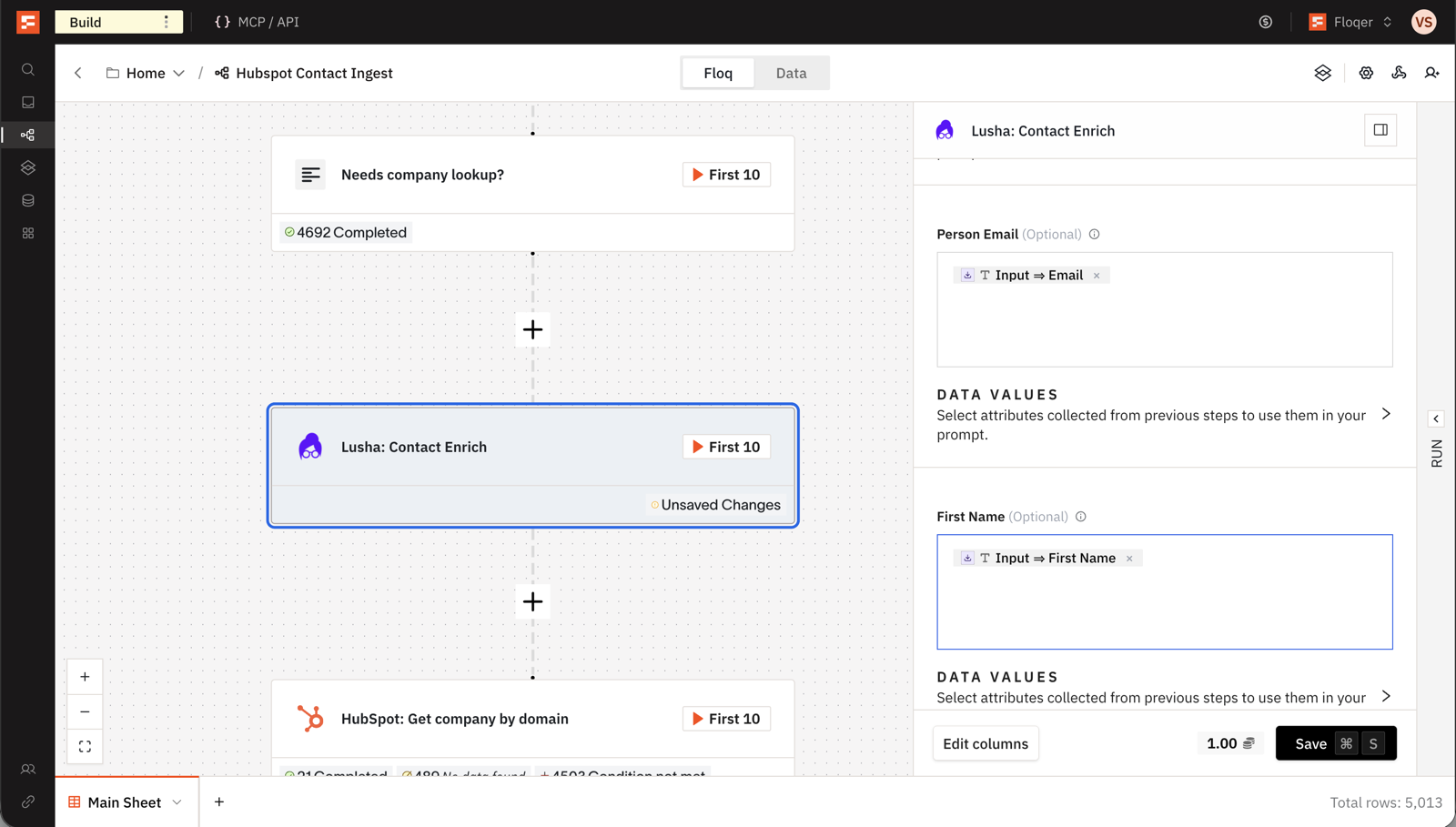
Lusha is a B2B contact database. We added it after customers asked for another way to find phone numbers. Add Lusha: Contact Enrich to look up a contact by LinkedIn profile URL, email, or name and company.
- Choose how to find the contact. Map Person LinkedIn URL or Person Email. Map First Name and Last Name with Company Name or Company Domain to search by name.
- Choose what to reveal. Reveal Emails is on by default and Reveal Phone Numbers is off. The result can include work and personal emails, phone numbers, job title, seniority and company details.
- Credits. A search costs 1 credit. Revealing contact details costs 1 more credit for each credit Lusha quotes. An email quoted at 1 costs 2 in total and a phone number quoted at 5 costs 6. You are not charged when no profile matches.
Note
A profile can match and still have none of the details you asked for. You get its profile details and pay the 1-credit search charge.
New Action: Find Employees at a company with AI Ark
AI Ark already builds company and people lists in Floqer. Now you can add AI Ark: Find Employees at Companies to a workflow and get up to 100 people for the company in each row.
- Map the company. Use a company domain or LinkedIn URL column in Company Name. A company name works too but similar names can return people from a different company.
- Narrow the results. Set Number of People from 1 to 100 and filter by Job Titles, seniority, department, location or headcount.
- Send them to a table. Open the result in the people viewer and use Send to Sheet to add each person as a row in a workflow table.
- Credits. Each person returned costs 0.5 credits. Floqer charges for the number you request and refunds the difference if fewer come back.
Verify emails with LeadMagic
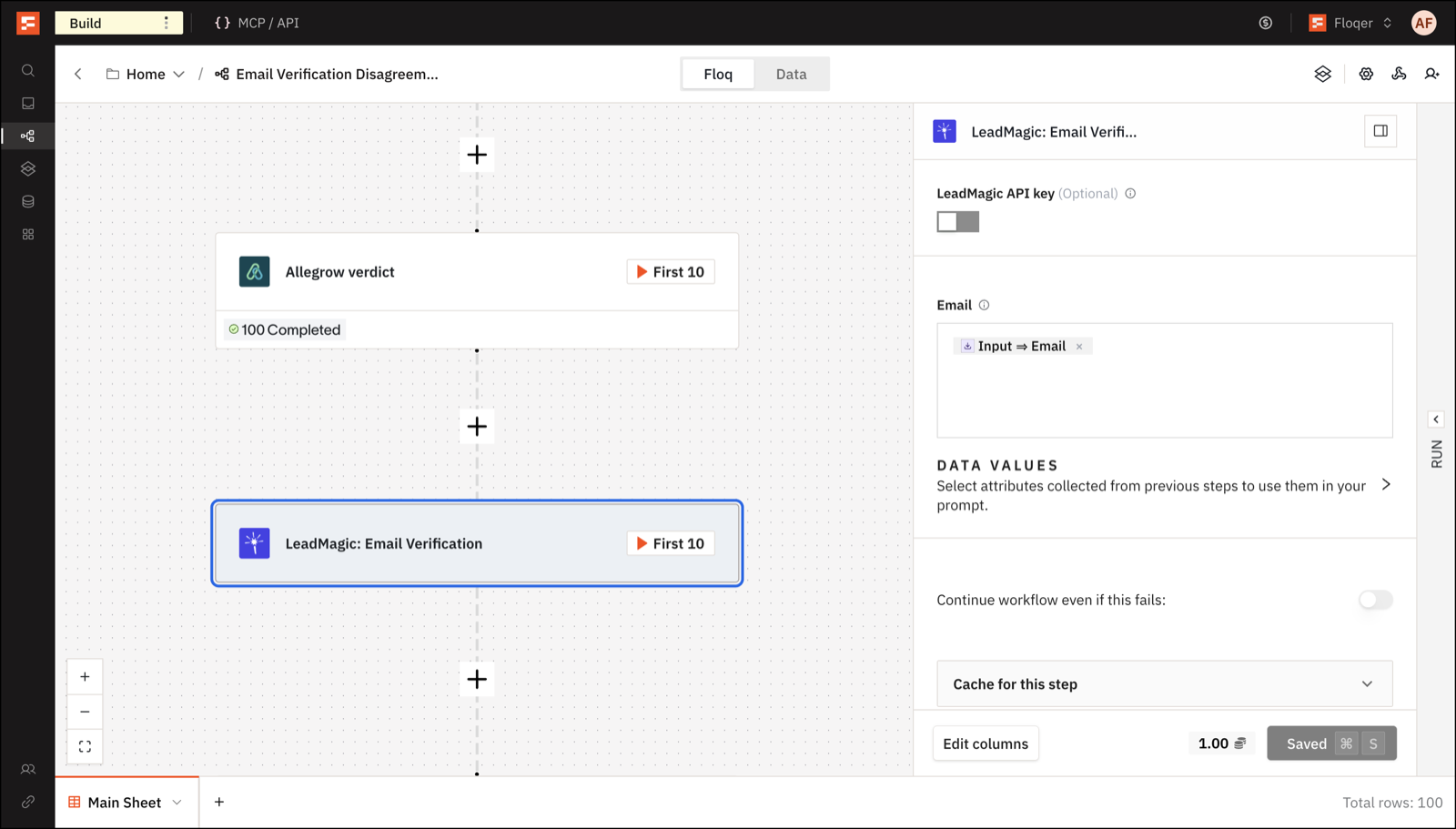
LeadMagic already finds work emails, phone numbers and LinkedIn URLs in Floqer. Now you can verify emails with it too.
- Check emails you already have. Add LeadMagic: Email Verification and map your email column. LeadMagic returns valid, invalid or unknown.
- Verify emails as you find them. Open Find Work Email and choose LeadMagic under Email Validation. The waterfall keeps emails marked valid and tries the next provider for the rest.
- Credits. Verification costs 1 credit per check. That is on top of the cost of finding the email.
Improvements
3Schedule rate limited action runs
The Rate Limiter could only space rows evenly. That did not help when you wanted a fixed batch to go out at a set time. Now you can also release rows in batches and choose the days and the time they go out.
Here is what each setting means:
- Requests is how many rows the Rate Limiter lets through in each unit of time.
- Per is that unit of time. You can pick Second, Minute, Hour or Day.
- Release decides how those rows go out.
- Evenly spaced spreads the rows across the unit. With 60 per Hour one row goes out every minute. This is how the Rate Limiter has always worked.
- Burst sends the rows together as one batch. With 60 per Hour the first 60 rows go out right away and the next 60 go out at the start of the next hour.
- Days are the days a batch is allowed to go out. Leave it empty to allow every day.
- Time of day is when the daily batch goes out. It shows up when Per is Day. Leave it empty for midnight.
- Timezone is the timezone your days and time of day follow. Daylight saving is handled for you.
Days, Time of day and Timezone only show up when Release is Burst.
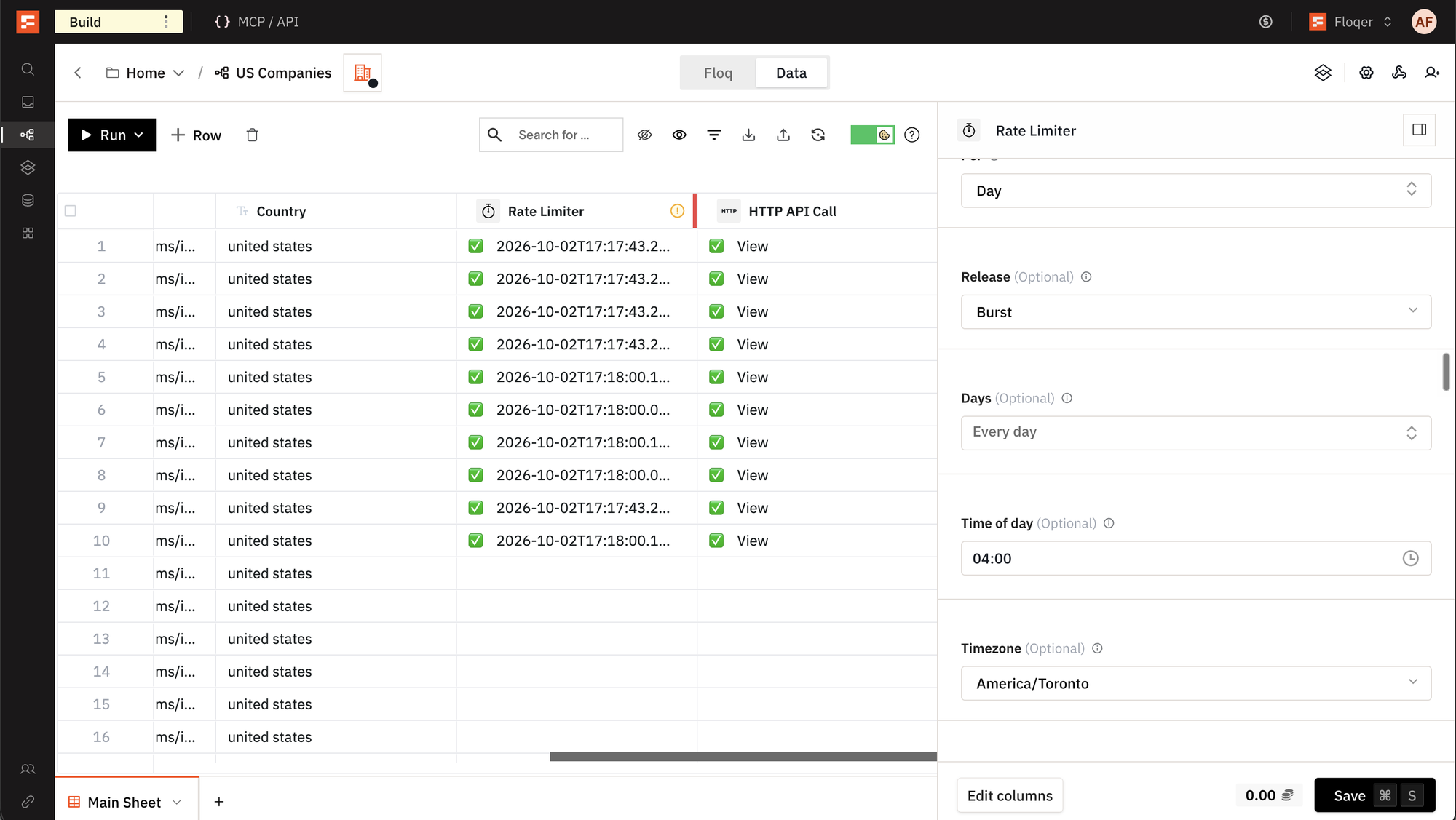
Here are three ways to use it:
- Send a fixed batch every weekday morning. Set Requests to 30, Per to Day and Release to Burst. Then select Monday to Friday and set Time of day to 09:00 with your Timezone. 30 rows move to the next step at 9 AM each weekday and the rest wait for the next one.
- Send a batch every hour during the week. Set Requests to 100, Per to Hour and Release to Burst. Then select Monday to Friday. The first 100 rows go out right away and 100 more go out at the start of each hour. Nothing goes out on the weekend.
- Stay under a provider's limit. Keep Release on Evenly spaced. Rows go out one after another at a steady pace.
A few things to know:

- Rows that are waiting show a Rate limited status. The next steps do not run for a row until it is released.
- A daily batch always goes out at its Time of day. It does not go out right away like minute and hourly batches do.
- A batch can hold up to 1,500 rows and Burst does not work with Second. Evenly spaced can release up to 25 rows per second.
- Your existing Rate Limiter steps stay on Evenly spaced. Rows that are already waiting keep their old schedule when you change the settings. Select Re-pace waiting rows to move them to the new one.
Scrape pages with an expired or invalid certificate
Turn on Skip TLS Verification in Scrape Web Page Content when a page won't load because its SSL certificate is expired or invalid. This option is off by default.
Floqer Agent waits for imports and Shortcut runs
Floqer Agent now checks the progress of CSV and Excel imports and Shortcut runs. It tells you when they finish and shares the failure details if something went wrong. If they're still running it can check again.
Bug Fixes
9-
Improved realtime status updates in the table view.
-
Run conditions and Filter actions now work on JSON and list data. Conditions like contains and does not contain find the text inside that data.
-
When an AI model is not available anymore, it fails with better error messages.
-
The X search posts list builder has improved reliability on filters and better error handling.
-
The LinkedIn posts by keyword list builder takes a single keyword or phrase. It now tells you when you enter comma-separated keywords.
-
The action drawer does not show deprecated providers anymore.
-
Improved paragraph spacing on large action outputs when you open a cell.
-
Floqer Agent shows each message you send only once in the chat.
-
Improved Floqer Agent's accuracy in long chats.