Introducing Jev, New Action to Stop Workflow Runs, Google Calendar Out of Office Check and Add Prospects to Gong Engage Flows
Today, a quarter of AI actions in Floqer are used for simple classification or scoring. They run on general LLMs, which is slow and costs a lot of credits on large enrichments. Introducing a new action to classify and score using Jev, TypeSafe's System One model. This release also adds a Blocker action to stop a workflow where you want, status bars at the top of every column, a new action to check if someone is Out of Office in their Google Calendar and workflow folders from MCP and APIs.
Platform Features
310x cheaper classification and scoring using Jev
Until today, GTM teams used LLMs for very simple classifications, which would cost a lot of credits on large enrichments.
Jev is a System One model by TypeSafe, the first of its kind, built for lightning-fast classification. It is up to 200 times faster and 400 times cheaper than an LLM at this. It is now in Floqer as Jev: AI Classify.
When to use Jev
Use it for any decision with a fixed set of answers. Is this person a decision maker? Which industry is this company in? Does this lead match our ICP? How senior is this title? Keep AI Generate Content for anything that needs written text, like a summary or a personalised line.
How to use Jev
Add Jev: AI Classify to your workflow. There are two ways to set it up:
-
Use our native chatbot. In Generate, explain what you want to classify and click Generate. We configure the questions for you. Edit them in Configure if you want.
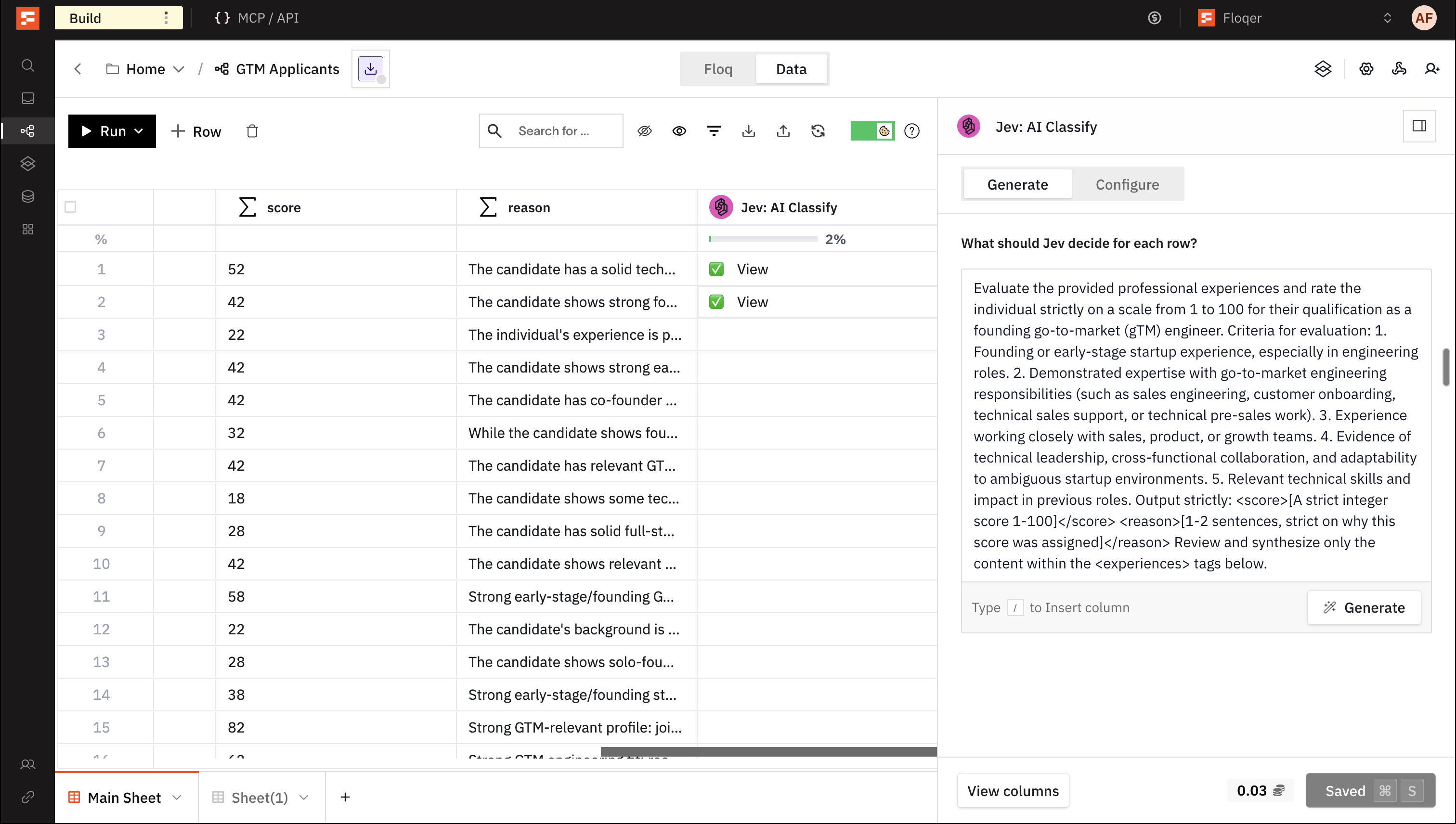
-
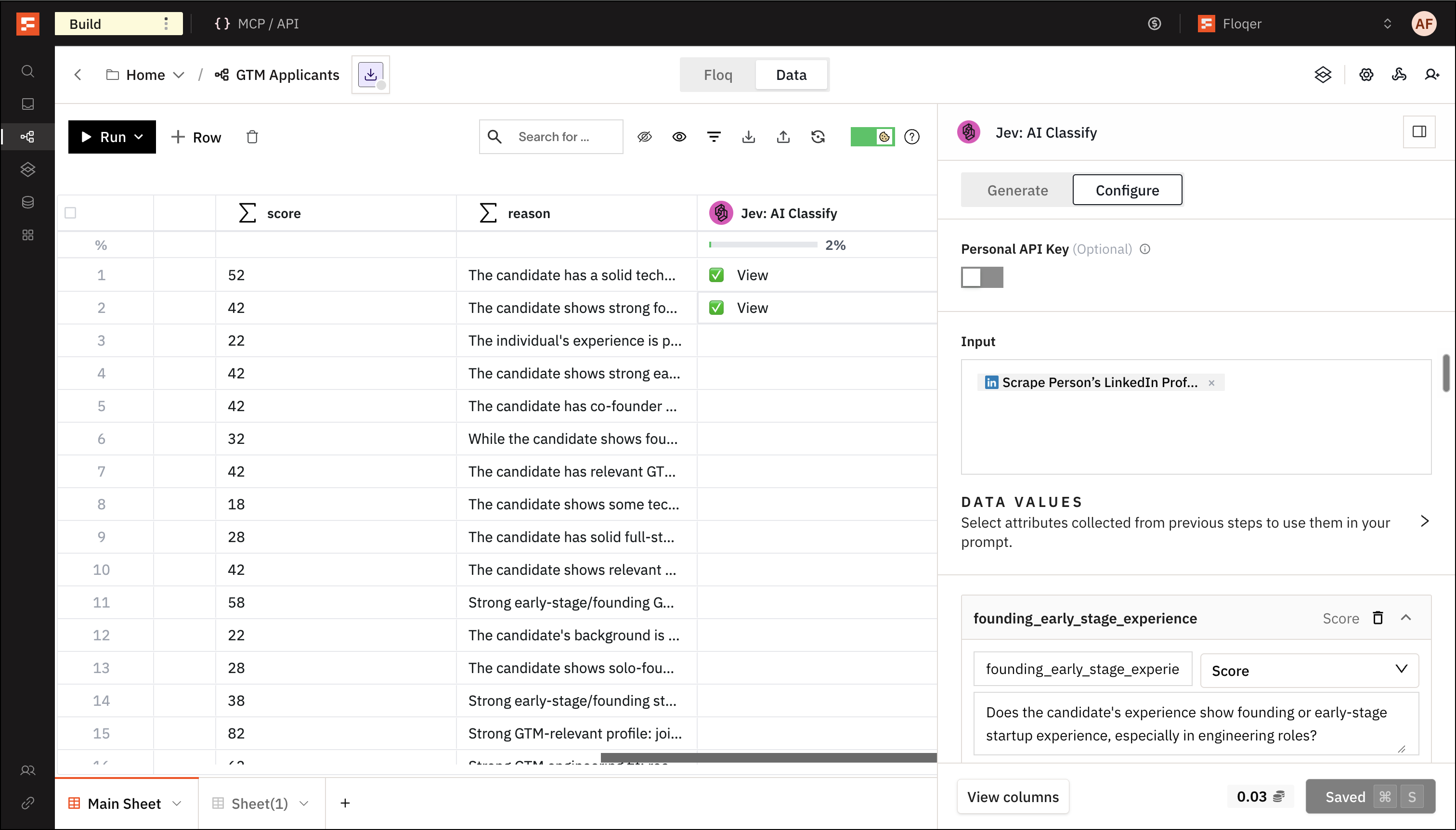
Configure it yourself. Map the Input columns and add your questions as Yes/No, Pick one or Score.
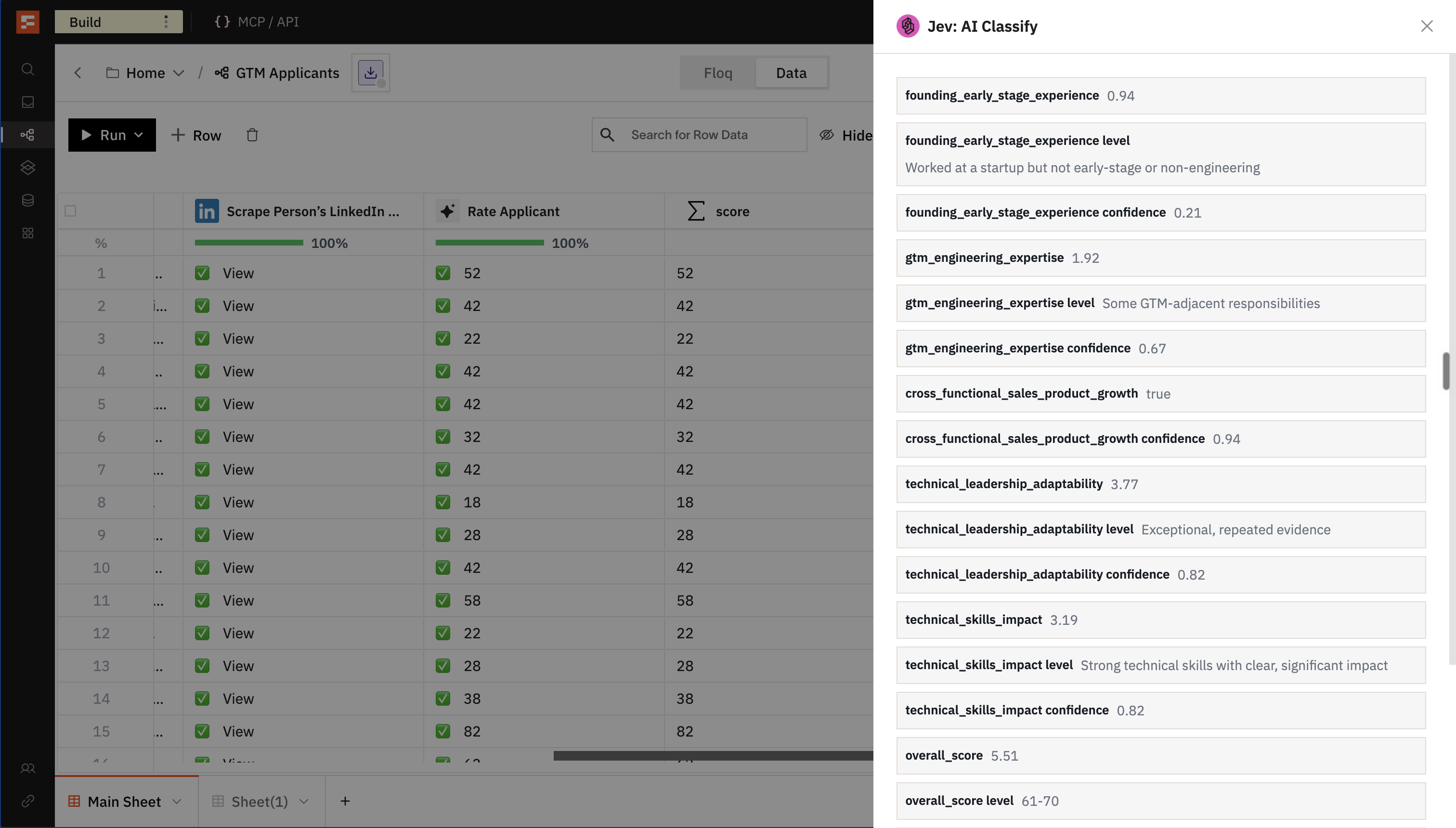
Click Save and run your rows. Every question gives you an answer and a confidence you can use in run conditions and Split Paths.
- Credits. Jev is billed on the text it reads. Eight questions on a full LinkedIn profile cost 0.022 credits. Turn on Personal API Key to run it on your own TypeSafe key at no Floqer credit cost.
You can also add and configure it headlessly from MCP, APIs or any agentic platform.
-
New action to stop a workflow
Until today, there was no way to run a select few consecutive actions without running everything downstream. You can now stop a workflow by adding a Blocker action in the workflow. This enables you to run tests while building workflows or when you want to run a select few actions.
Here is how you use it:
-
Add the Blocker action where you want the workflow to be stopped. There is nothing to configure.
-
Run the upstream actions. Rows stop at the Blocker.
-
Check the results. Run any downstream step once they look right. The rows continue from there.
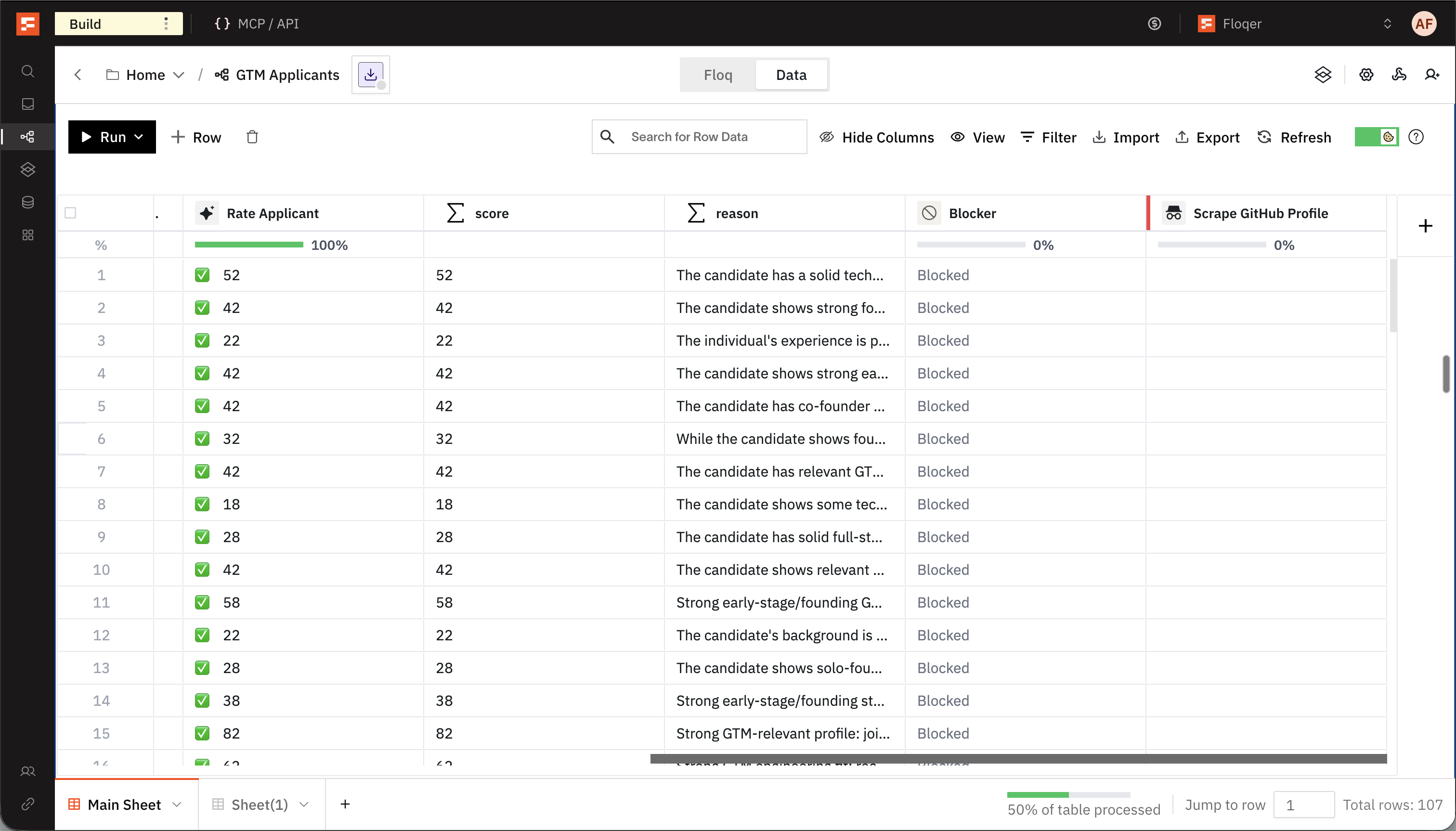
A few things to know:
- A Blocker on one path of a Split Path stops only that path. The other paths keep running.
- It works in Shortcuts too. A Shortcut run that reaches a Blocker ends there with no outputs.
You can also add it headlessly from MCP, APIs or any agentic platform.
-
View the status of your actions in the Data view
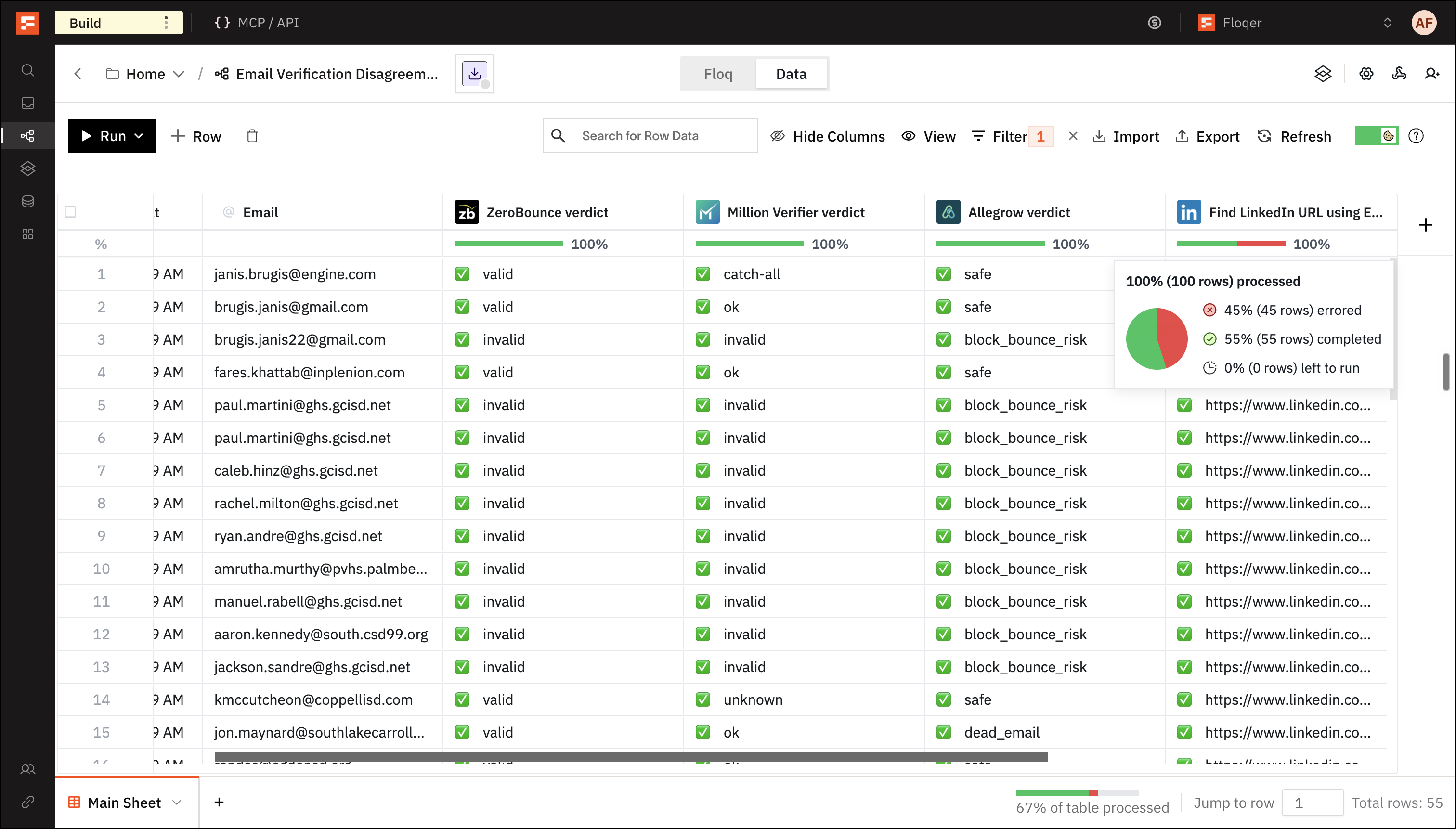
The Data view now shows a status bar under every action's column header. Green is completed, red is errored and grey is still to run. Hover a bar for the counts. Turn it off or on for a sheet with Show column statistics at the bottom of the Data view.
Agentic Building
2Make a Shortcut available in the browser extension headlessly
Until today you had to go into the platform to make a Shortcut available on the browser extension. Now you can use Floqer Agent, MCP, APIs or any agentic platform to configure a Shortcut to be available on your browser extension.
It can configure it for both LinkedIn and Sales Navigator and set the input the extension fills from the page.
API reference: Create Shortcut, Update Shortcut
Organize workflows into folders headlessly
Your agent can now see which folder a workflow is in, list your folders, create one, and create or duplicate a workflow straight into a folder.
API reference: List Workflow Folders, Create Workflow Folder
Data & Integrations
4New Action: Check Out of Office with Google Calendar
Until today there was no way to know if a rep was out of office before routing a lead to them. Now your workflow can check their Google Calendar. We added a Google Calendar connection and a Google Calendar: Check Out of Office action.
Here is how you set it up:
-

Go to Connections, select Google Calendar and sign in with your Google account. One connected account can check anyone whose calendar it can see, such as colleagues in the same Google Workspace.
-
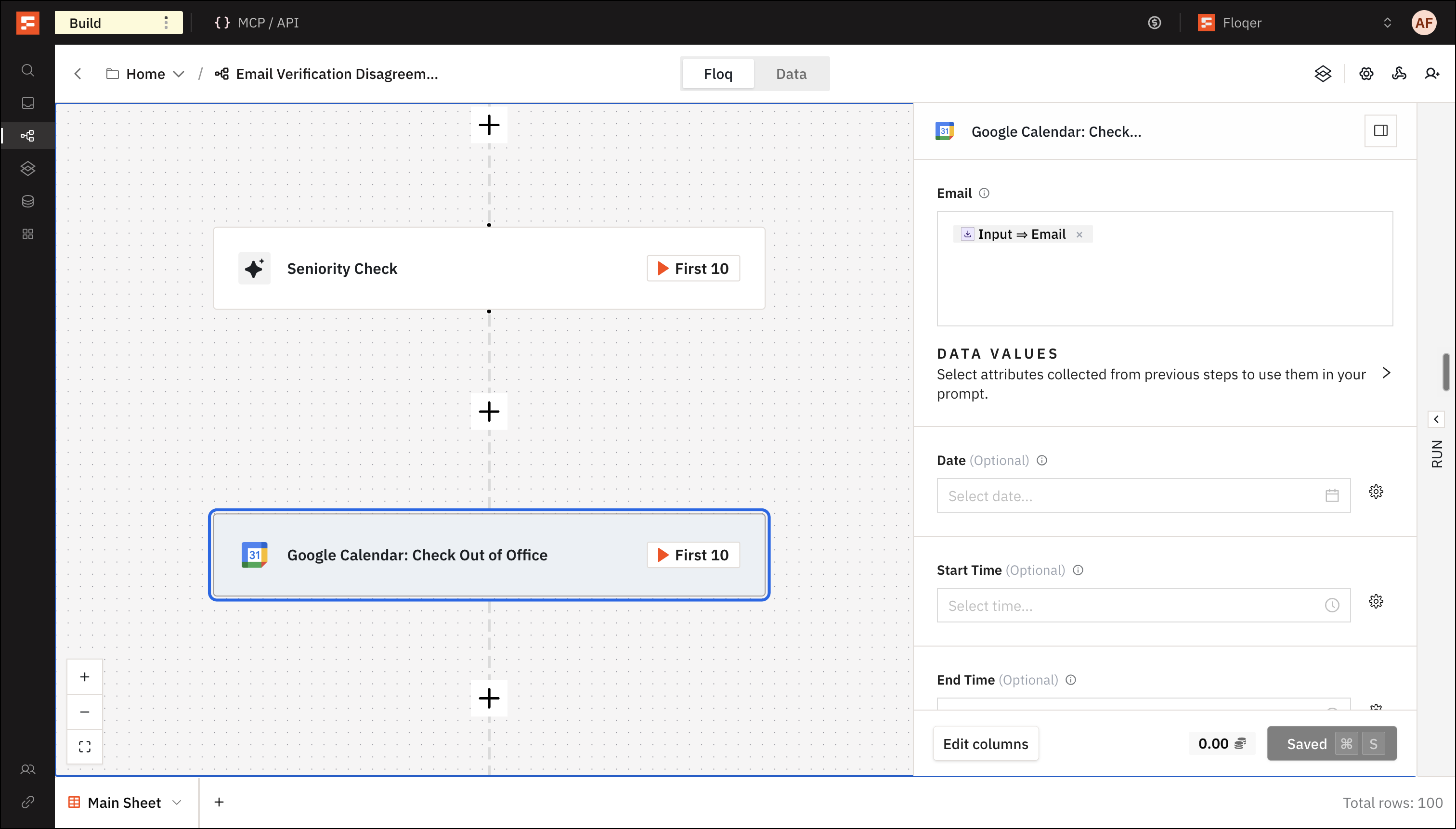
Add Google Calendar: Check Out of Office to your workflow and map the rep's Email.
-
Choose when to check. It checks today by default. Set a Date and a Start Time and End Time for a specific window.
-
You get back whether the rep is out of office, and from when until when. Use that in a run condition or Split Path on the next step, so the lead goes to someone else when the rep is away and to the rep when they are in.
The action costs 0 credits.
Note
The row fails when the connected account cannot see the person's calendar.
You can also add it headlessly from MCP, APIs or any agentic platform.
-
New Action: Add prospects to a Gong Engage Flow
Until today, you could pull call data from Gong into your workflows but there was no way to push a lead back into Gong. Reps had to add every prospect to their Engage Flows by hand. You can now add prospects to a Gong Engage Flow straight from a workflow with the Gong: Add prospect to Flow action. This enables you to qualify leads in Floqer and have them land in the right rep's Flow automatically.
Configuring the action:
- Gong Flow ID: The Gong ID for the Flow you are pushing this lead to. Copy it from the Flow's URL in Gong.
- Gong prospect CRM ID: The prospect's Salesforce or HubSpot ID. The prospect has to exist in your CRM first.
- Gong Flow owner email: The Gong rep who owns the Flow and gets its to-dos. They need a Gong Engage license.
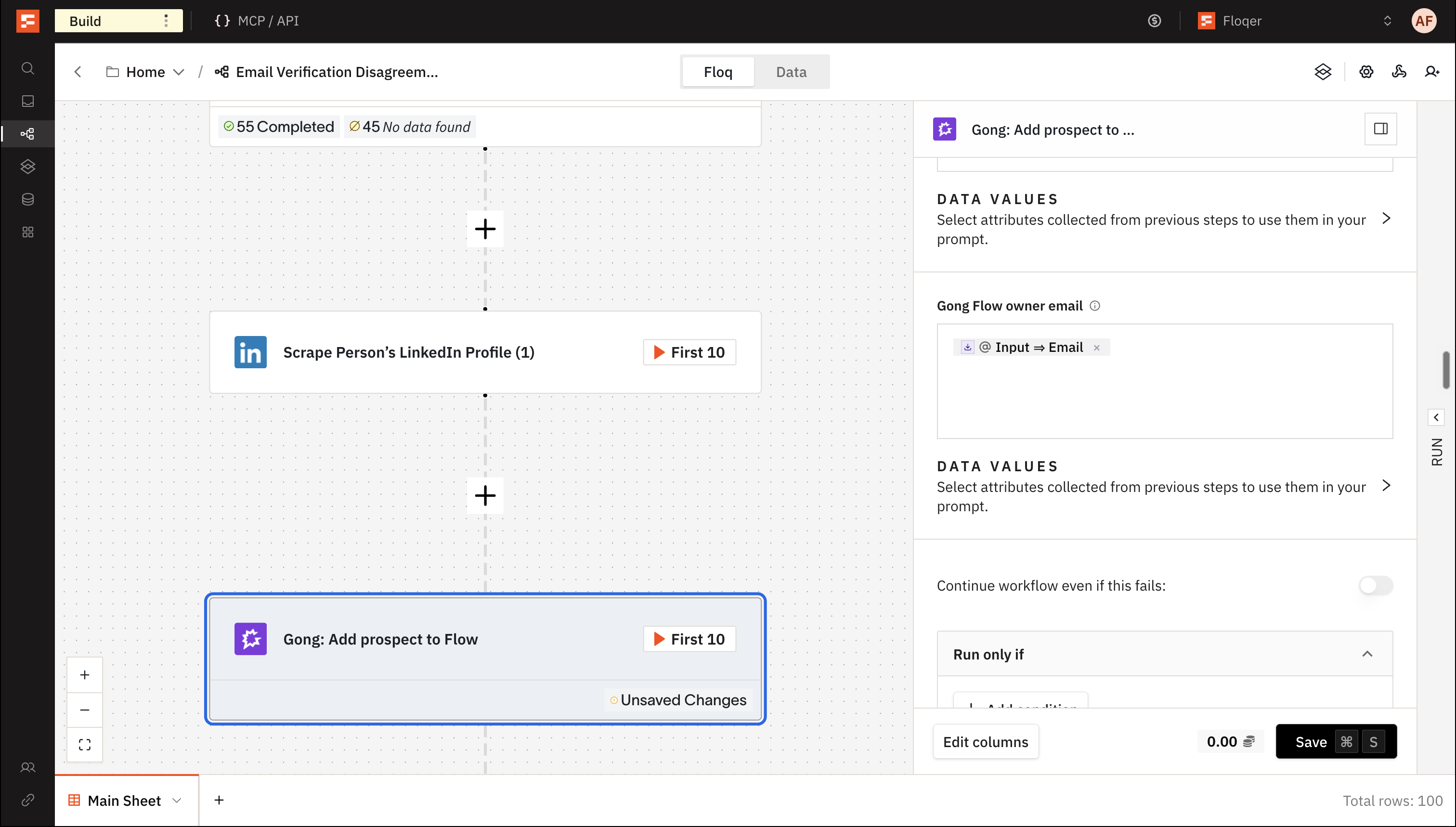
You get back the Flow name, its status and the Flow instance ID.
A few things to know:
- Your CRM has to be connected to Gong.
- Expect a delay between adding the prospect to your CRM and it showing up in Gong.
- Gong may refuse a prospect, for example one that is already in that Flow. The row then fails and shows you Gong's reason.
- The action uses no Floqer credits.
You can also add it headlessly from MCP, APIs or any agentic platform.
New models for the Web Agent: Exa, Perplexity and Parallel
We are introducing 10 new models from 3 providers in the Web Agent.
Provider Model Credit Cost Exa Exa 0.5 Exa Pro 0.5 Exa Research 0.5 Exa Fast 0.5 Perplexity Perplexity Fast 0.5 Perplexity Low 2 Perplexity Medium 8 Parallel Parallel Lite 0.5 Parallel Core 2.5 Parallel Pro 10 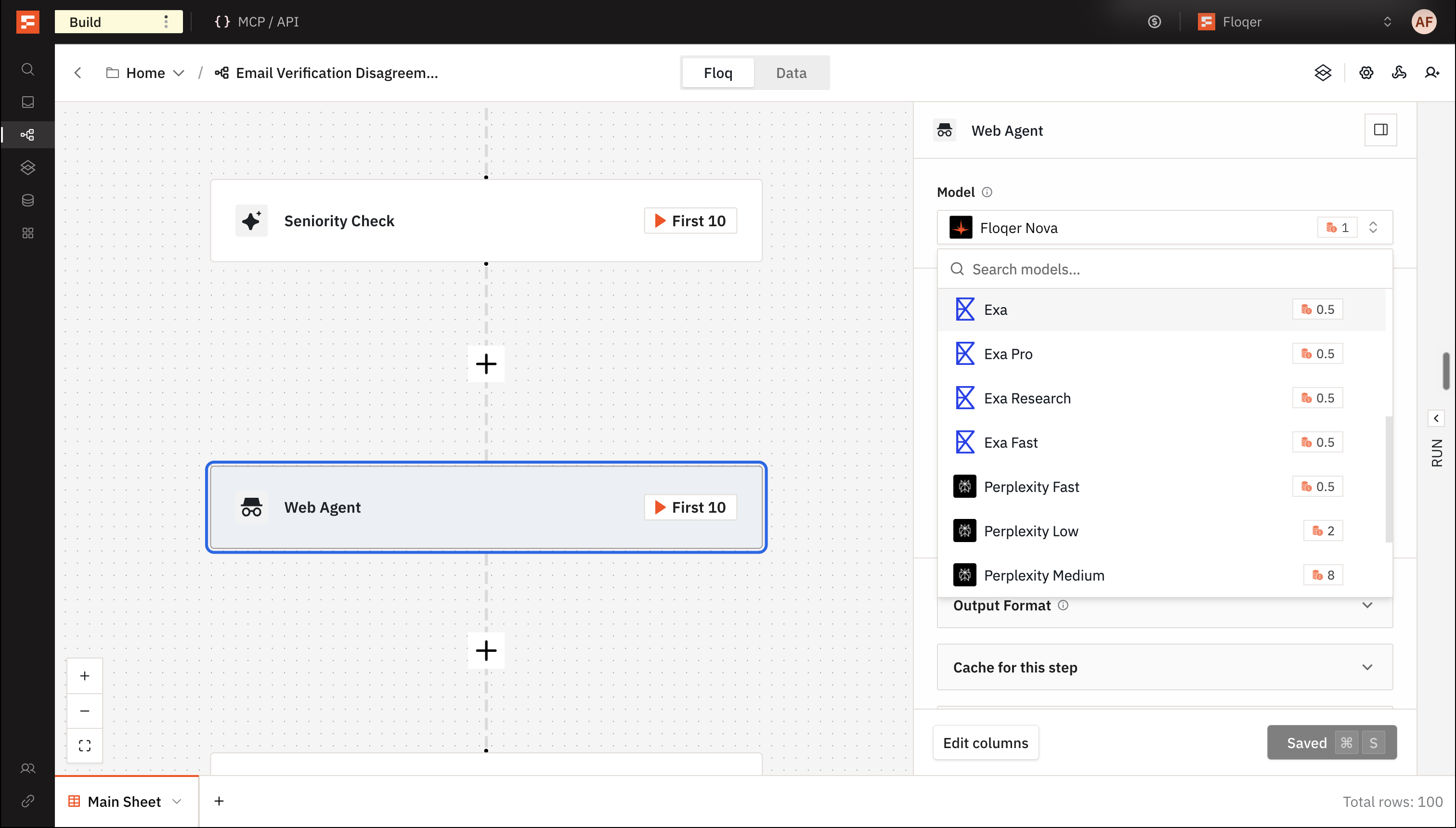
New provider for LinkedIn scraping: Titan
Until today, we only had one provider for scraping LinkedIn. Now we have a new one, Titan, for better coverage on scrapes. Add it to your Scrape Person's LinkedIn Profile and Scrape Company LinkedIn Profile waterfalls. It costs 0.2 credits.
Improvements
3Configure Formula output as columns natively
Until today, a Formula that returned JSON showed up as one block of text in the cell. To use one value out of it, you had to write another Formula for each key. You can now set the Formula output type to Json and add any key as its own column. This enables you to work with nested data from a single Formula.
Set Result - Output type to Json and run the Formula. Open a cell and click + Add Column on the key you want.

Agents can set the output type with
output_types.API reference: Add Action, Configure Action
Keep the action drawer open after generating a formula
Generating a formula closed the drawer. You had to reopen the step to read what it wrote. Now the drawer stays open with the generated formula ready to review and edit. Renaming a step keeps it open too.
Organizations page shows your current organization and plan
The organizations page now marks the organization you are in and shows each organization's plan. Only organizations you can switch into are listed. Your organizations awaiting approval are named under the list.
Bug Fixes
5-
Reliability fixes for large table deletions. Deleting thousands of rows runs in the background and the table stays usable while it finishes.
-
API requests refused for missing permissions now say which permission was missing and what to do about it.
-
Auto Dedupe now handles tables with millions of rows.
-
Companies by Tech Stack tells you when a technology name is not recognized and keeps going when one of several technologies returns nothing.
-
Floqer Agent finishes requests that used to stop partway with an error.