Slack for Sales Teams: Website Visitor Alerts, CRM Approvals and More
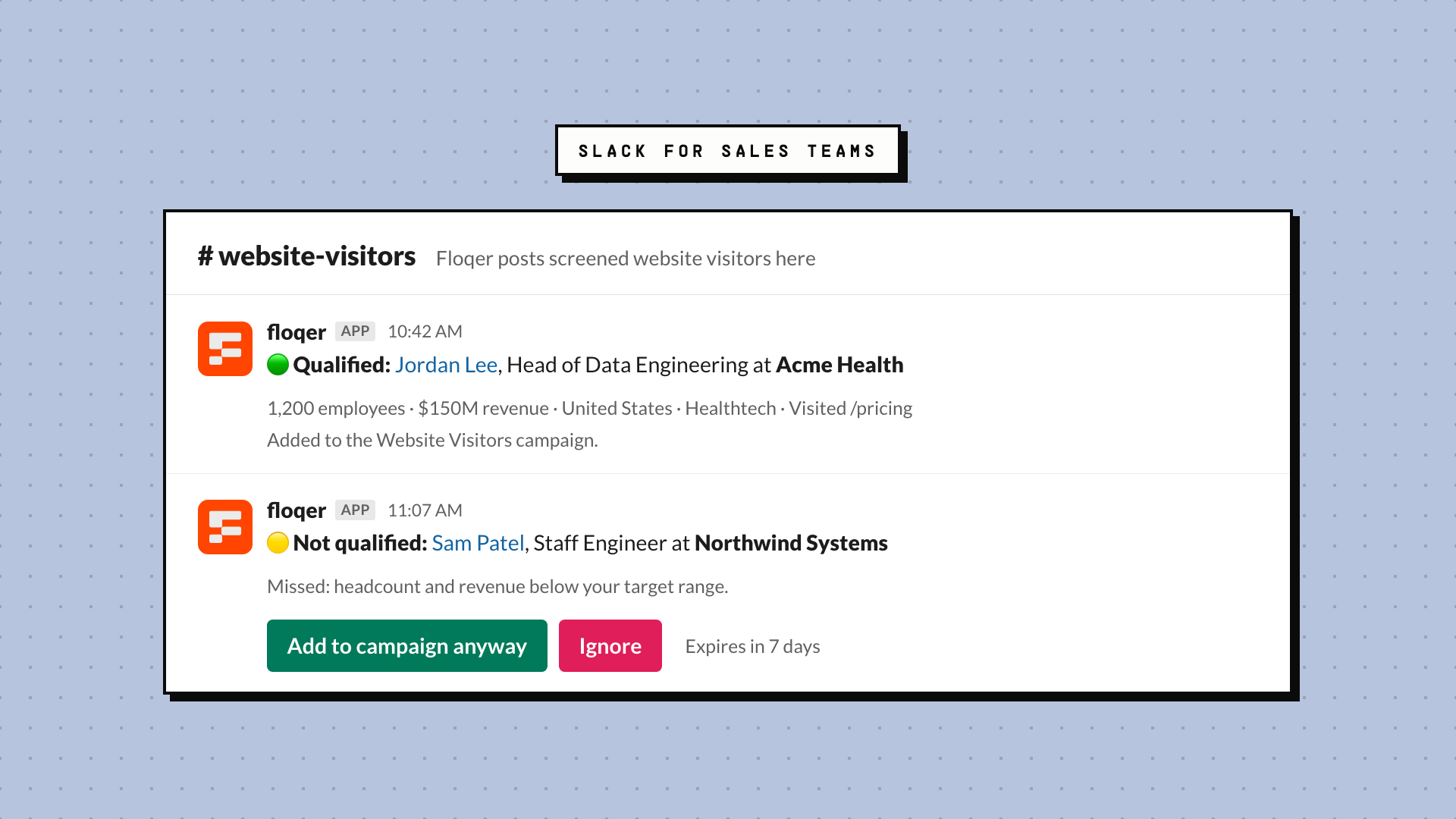
Slack alerts for sales teams turn what your tools already know into messages a rep can act on: who's on your website right now, what changed on a call, which champion just started at a new company. Most Slack alerts fail for the same reason. They post everything, so the channel gets muted within a week. This guide walks through two builds that avoid that: website visitor alerts that screen before they post, and CRM updates that reps approve from Slack. It also covers six more workflows and how the Slack step works.
Last updated: November 25, 2026.
Disclosure: this guide is written by Floqer, and the builds use Floqer.
Two rules for Slack alerts that get read
- Screen before you post. Check the person, the company and your CRM first, and post only what's worth a look. Log the rest in the workflow, where you can still review it.
- Ask for a decision, not attention. Put the next step in the message as buttons or a short form, so the rep decides there and the workflow carries it out.
Build 1: Website visitor alerts in Slack, screened before they post
A raw feed of every identified visitor is mostly students, job seekers, vendors and existing customers. This build posts only the visitors who fit, adds the clear fits to an outbound campaign on its own, and leaves the borderline ones to the team.
How it works
- Identify the visitor. Floqer's website visitor identification matches a visit to a company, and often to a person. Each new visitor becomes a row in a workflow, with the page they viewed, and is posted only the first time they show up.
- Check the role. Enrich the person's title and sort them into the groups you sell to, for example the leaders who buy and the hands-on people who use your product. Everyone else is logged in the workflow and never posted.
- Skip customers and open deals. Look the account up in your CRM. Existing customers, and accounts with an open opportunity, are skipped, so nobody cold-emails a customer.
- Check the company against your ideal customer profile, for example on its name, headcount, revenue and location. Hard exclusions, such as agencies, consultancies, investors and competitors, never qualify.
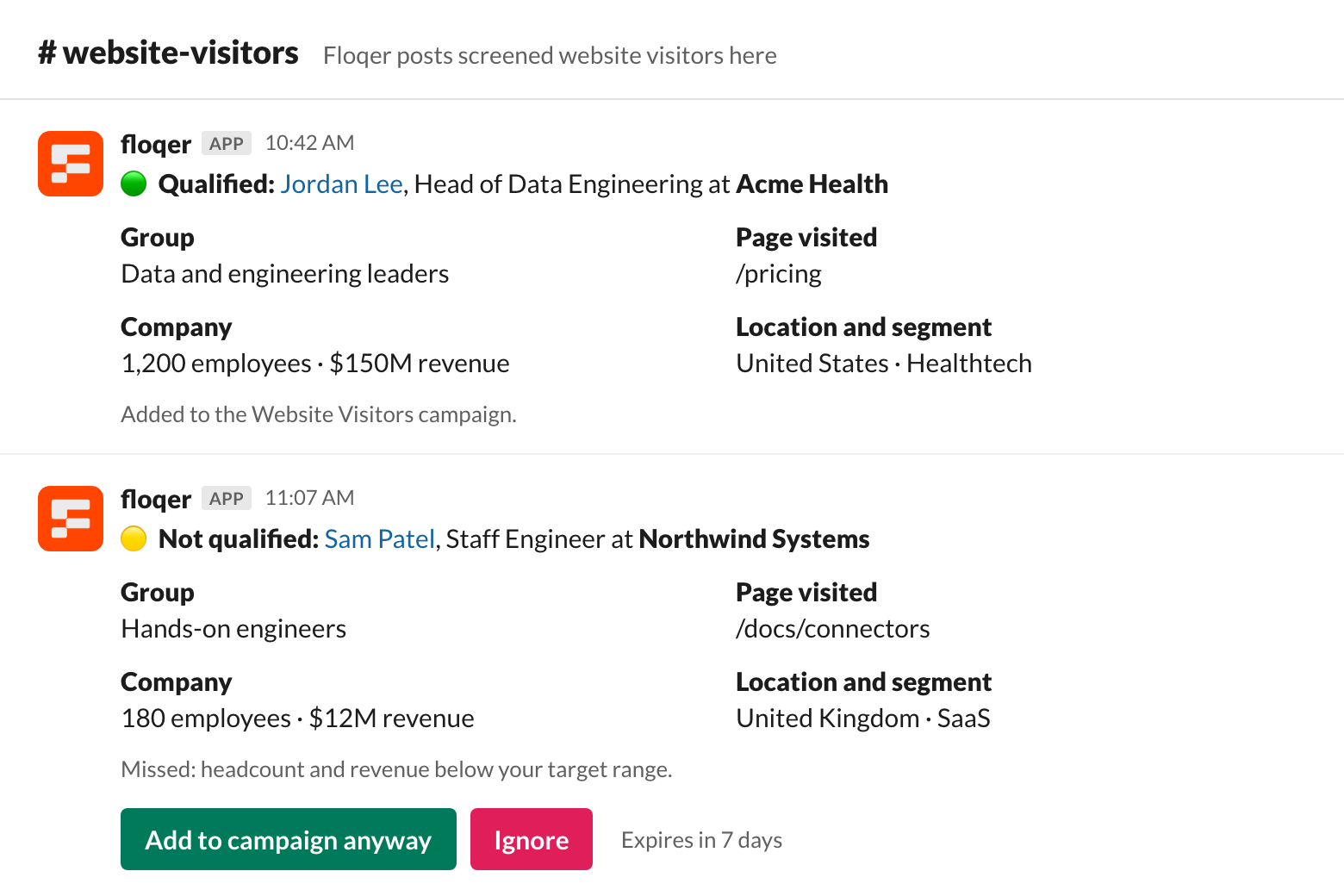
- Post to a #website-visitors channel, in one of two forms:
- 🟢 Qualified. The company fits, and the person is added to your website visitor campaign automatically. If they can't be added, the message says why: they're already in a campaign, no email was found, they're on a suppression list, or they're marked Do Not Contact in your CRM.
- 🟡 Not qualified. The message says which check the company missed. Two buttons let the team decide: Add to campaign anyway or Ignore. You can set when the buttons expire.
What each message shows
- The person, linked to their LinkedIn profile, with their title and group
- The company's fit, headcount, revenue, location and segment
- The page they visited
- For a 🟡 message, the check the company missed. For a 🟢 one that couldn't be added, the reason
Tune it after the first few weeks
The first version of a screen is usually too strict. Read the 🟡 messages and the people who were logged but never posted, then adjust:
- Score headcount and revenue instead of cutting on them. A hard cut on headcount or revenue drops accounts just outside your range that would be great customers. Make them part of a fit score, and keep hard exclusions for competitors and industries you never sell to.
- Send high-intent visitors with no title to review. If the person's title can't be found but they've read your pricing page twice, post them for review instead of dropping them.
- Check every visitor got a decision. Filter the workflow for rows with no qualification result. They usually point to a failed enrichment step.
Build 2: Approve CRM updates from calls in Slack
Calls are where the details your CRM is missing come up: where the account is based, how big the team is, what they use today, the next step. AI can pull them out of a transcript, but a value like headcount shouldn't land in your CRM without a person checking it. Slack is where that check happens.
How it works
- Bring in new meetings. Floqer brings in the transcript, summary and action items from your meeting notetaker as soon as each meeting is done.
- Match the meeting to an account in your CRM, using the attendees' email domains.
- Extract the fields you track. An AI step reads the transcript and pulls out only the fields you define, for example the account's HQ location, headcount, the tools they use today, the next step and the next meeting date. Ask it to quote the line each value came from.
- Drop what hasn't changed. Compare each value with what's already on the account, and keep only real changes.
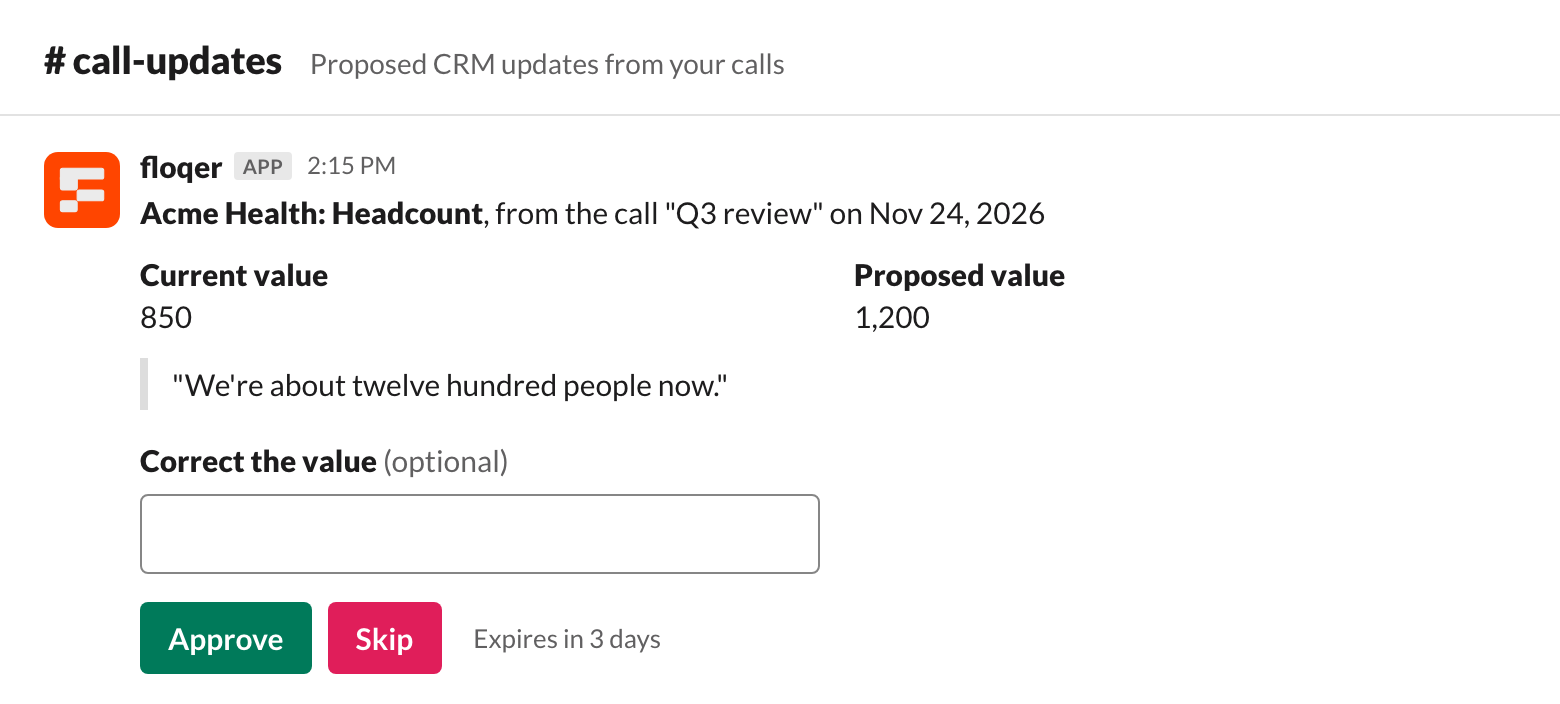
- Post each proposed change to Slack for a rep to approve.
- Write the approved values. Approve writes the value, or the rep's correction, to the account in Salesforce, HubSpot or whichever CRM you use. Skip leaves the account as it is. The workflow records who decided and what they chose.
- Turn follow-ups into tasks. For each action item, ask for a due date with a date picker, then create the task in your CRM, assigned to the rep.
What each message shows
- The meeting the value came from
- The field, its current value and the proposed value
- The line from the transcript the value came from
- Approve and Skip buttons, and an optional box to correct the value
Post one message per proposed value. A button decides everything in its message, so one value per message lets a rep approve the headcount and skip the HQ location.
What to send for approval
Fields you trust, like the next step, can skip the approval and write straight through. For more on enriching opportunities from calls, see the CRM data enrichment guide.
More Slack workflows for sales teams
Inbound leads, routed in Slack
Enrich each form fill, score its fit, and pick the rep by territory or by how many leads they've had recently. Skip reps who are out of office, then @mention the rep in Slack with the lead's details. The HubSpot data enrichment guide covers tagging owners and acting on leads from Slack in more depth.
Champion tracking and job change alerts
Watch the people who bought from you or championed you. When one starts at a new company, write them into your CRM and message the account owner. A past champion at a new company is one of the warmest leads you'll get.
New contacts for the account owner
Find new contacts at each owner's accounts, filtered by job function and seniority, assign them to the owner in your CRM, and send the owner a Slack message listing who was added.
Hiring signals at target accounts
When a target account posts a job you track, such as a first data engineering hire, post the role, the company and the contacts you'd reach out to, with buttons to add them to a campaign or pass.
Turn a Slack channel into a lead source
Floqer can import messages from the channels you choose, once or on a schedule. Point it at a channel where partners or teammates share referrals, pull out the company and person with AI, enrich them, and add them to your CRM.
Ask Floqer's agent from Slack
Reps mention Flo, Floqer's agent, in a channel to research an account, find a phone number, or enrich a list of contacts. Flo answers in the thread. For bigger requests it shows a plan first, with Approve & run and Revise buttons.
How the Slack step works in Floqer
The Slack: Send a message step posts to the channel you choose and can wait for an answer before the workflow continues.
- The message is text with values from the row, plus labelled fields, or a full Slack Block Kit layout if you want more control over how it looks.
- Buttons. Up to 10, with your own labels. Each one either runs the next steps or stops the row there, and either saves the form answers or doesn't. The row waits until someone clicks.
- Questions. Up to 10: short or long text, dropdowns, multi-select dropdowns, a people picker, date and time pickers, checkboxes and radio buttons. Dropdown options can come from the row, such as a list of campaigns.
- Answers become columns. Each answer, the button clicked and who responded are saved on the row, so later steps can use them.
- Expiry. Buttons stay clickable for 1 to 30 days. The default is 3.
- The message updates after a click to show the decision and who made it.
- Cost. Slack steps cost 0 Floqer credits.
Anyone who can see the message can answer it, so post decisions to a private channel when only certain people should make them.
Set it up
- Connect Slack. In Floqer, open Connections, choose Slack, and approve access in Slack. You don't need to be a Slack admin unless your workspace limits who can install apps.
- Invite the bot to private channels with
/invite @Floqer. Floqer can post to public channels without an invite. - Add a Slack: Send a message step to your workflow, pick the channel, write the message, and add buttons or questions if the step needs a decision.
- Use the answers. Add the steps that should run after a click, and use the answer columns in them.
The Slack setup guide covers permissions, what Floqer stores and how to remove access. Floqer for Slack has the install button.
FAQ
Does sending Slack messages cost Floqer credits? No. Slack steps cost 0 Floqer credits. The enrichment and AI steps in the same workflow use credits at the rates on the pricing page.
How do I build an approval workflow in Slack? Add a Slack: Send a message step with buttons, such as Approve and Skip. The workflow waits at that step until someone clicks. A button that continues runs the next steps, such as writing the approved value to your CRM, and a button that stops ends the row there. Add questions, like a box to correct a value or a date picker, and the answers are saved as columns for the next steps, along with who responded.
Can I get website visitor alerts in Slack? Yes. Floqer's website visitor identification matches a visit to a company, and often to a person. A workflow checks their role, your CRM and your ideal customer profile, then posts the visitors who fit to a Slack channel, with buttons to add borderline ones to a campaign or ignore them.
How is this different from the HubSpot and Salesforce Slack apps? The CRMs' own Slack apps work with the data already in your CRM. HubSpot's app sends notifications, such as form submissions, task reminders and activity on a deal or company, and lets you search, create and update records from Slack. Salesforce's Sales Cloud for Slack lets reps view records, check their pipeline, get reminders and follow deals in channels, and Salesforce also offers approvals in Slack. Floqer adds the work before the message: it identifies website visitors, enriches people and companies from 100+ data providers, checks them against your ideal customer profile and reads call transcripts with AI, then posts only what's worth acting on. It works alongside either app.
Can reps approve or reject CRM updates from Slack? Yes. Add Approve and Skip buttons to the message, and optionally a box to correct the value. The workflow waits for the click, then writes the approved value to your CRM or stops.
What happens if nobody clicks? The row waits, and the steps after the Slack message don't run for it. Buttons stop working after the expiry you set, from 1 to 30 days.
Can Floqer @mention the record owner in Slack? Yes. Slack mentions use the person's Slack user ID, so keep a small table that maps each CRM owner to their Slack ID, and look the owner up in the workflow.
Can Floqer post to private channels? Yes, once you invite the Floqer bot to the channel.
Which CRMs does this work with? Any CRM Floqer connects to, including Salesforce, HubSpot and Attio. Looking up, creating and updating CRM records costs 0 Floqer credits.
Does Floqer read my Slack messages? Only in channels the Floqer bot has been added to, and only when you set up a Slack source to import them. Floqer never deletes Slack messages, files or channels.
Do I need to be a Slack admin to connect Floqer? No. If your workspace limits who can install apps, Slack sends a request to a workspace owner or admin to approve.