HubSpot Data Enrichment: How to Automatically Enrich Every Contact and Company
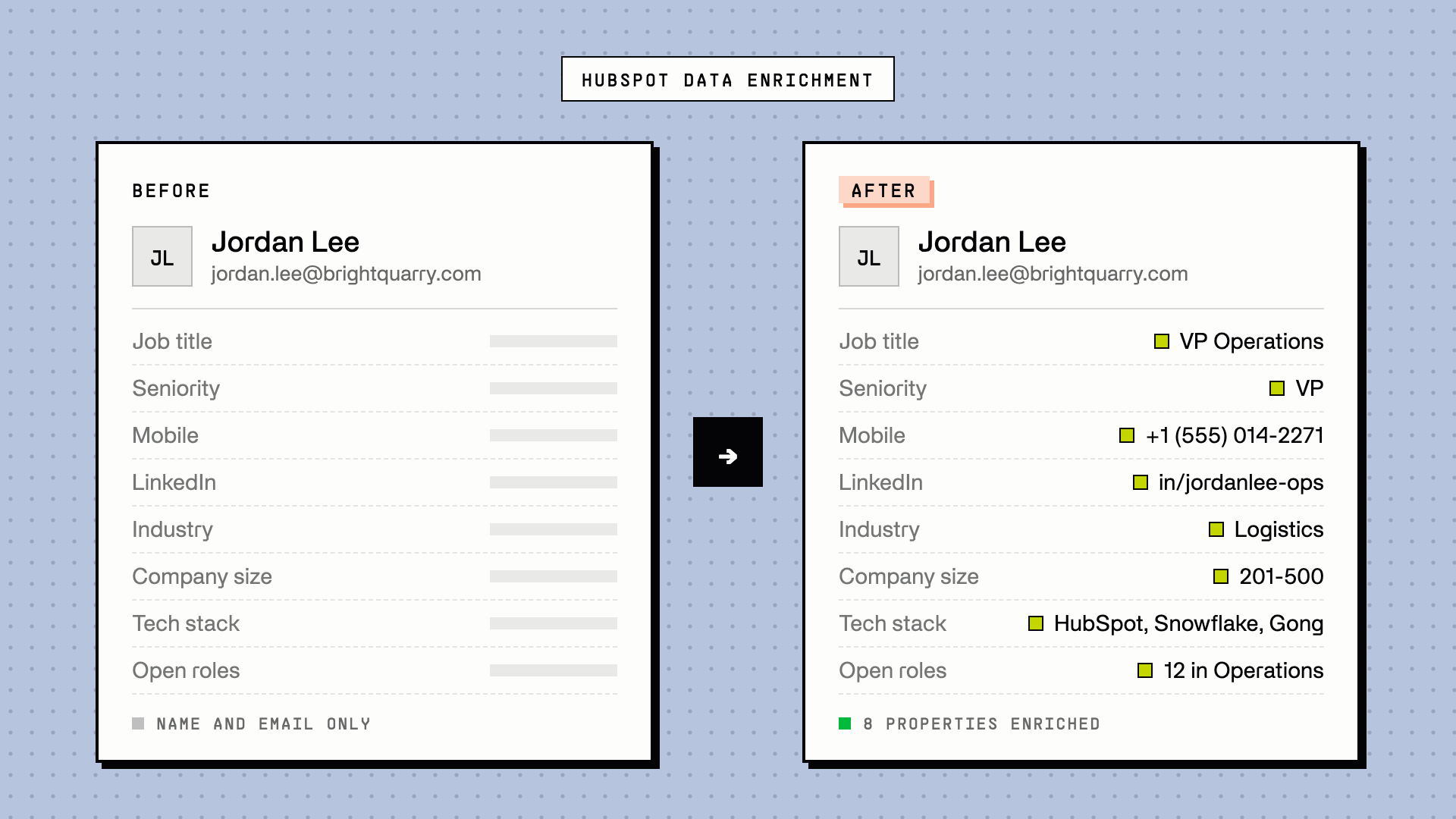
HubSpot data enrichment is the process of adding missing details to your HubSpot contacts and companies, like job title, company size, industry, and phone numbers, by matching each record against outside data sources. HubSpot's built-in enrichment is free and covers the basics, but it doesn't find phone numbers for people, and it only enriches contacts that already have a work email. To get more than the basics, set up automatic CRM data enrichment at the three moments that matter: when a record is created, when someone fills a form, and when a company visits your website.
Last updated: November 11, 2026.
Disclosure: this guide is written by Floqer, and the worked example uses Floqer. The same approach works with other tools, and we say where HubSpot's built-in features are enough.
How HubSpot data enrichment works, and where it stops
HubSpot's data enrichment was previously sold as Breeze Intelligence, and it's built on Clearbit, which HubSpot acquired in 2023. HubSpot matches contacts on first name, last name, and work email, and companies on their domain. Data enrichment is included in Starter, Professional, and Enterprise plans, doesn't use HubSpot Credits, and stays off until a Super Admin turns it on. Once it's on, it fills empty properties on new records and on existing records you select. Continuous enrichment keeps those values current, and stops updating any property a user has edited by hand.
It fills the basics: job title, seniority, role, LinkedIn URL, and location on contacts, and industry, employee count, revenue, address, and phone number on companies.
Where it stops:
- No phone numbers for people. Companies get a main phone number. Contacts get no mobile numbers or direct dials.
- Contacts need a work email first. Records with a Gmail or Yahoo address, or no email at all, aren't enriched.
- Industry tags can be wrong. HubSpot users report manufacturers tagged as marketing firms, which breaks segmentation.
- Standard fields only. Custom questions, like "do they sell to hospitals?", need smart properties, which use HubSpot Credits on every record, even when they return nothing.
| HubSpot built-in | Automated enrichment | |
|---|---|---|
| Firmographics | Yes | Yes, from several sources |
| Job title and seniority | Yes | Yes |
| Mobile and direct dials | No | Yes, through a phone waterfall |
| Finding a work email | No, it needs one to start | Yes, through an email waterfall |
| Tech stack, hiring, funding | No | Yes |
| Custom research questions | Smart properties, credits per record | AI web research per record |
| Form submissions | Form shortening | Enriched before routing and scoring |
| Website visitors | Companies, through buyer intent (credits) | Companies and people |
If you mainly need firmographics and job titles on records that already have a work email, the built-in enrichment is enough. Turn it on first. Everything below builds on it.
Basic data vs. deep data
Basic data tells you who someone is. Deep data tells you whether to reach out, what to say, and who should do it.
People
- Basics: work email, phone number, LinkedIn URL, job title
- Deeper: seniority and department, time in role, a recent job change, what they've posted lately
Companies
- Basics: industry, employee count, revenue, location
- Deeper: tech stack, headcount by team and country, open roles, recent funding and news, and answers to your own questions from AI web research
| Field | What it powers in HubSpot |
|---|---|
| Seniority, department | Routing and lead scoring |
| Mobile number | Calling sequences |
| Job change | Re-engaging former champions |
| Tech stack | Segments and personalised messaging |
| Open roles, funding | Timing outreach |
| Custom AI research | Qualifying against your ICP |
Only enrich fields something uses. Every field should feed a list, a score, a route, or a message.
Trigger 1: Enrich HubSpot contacts and companies automatically when they're created
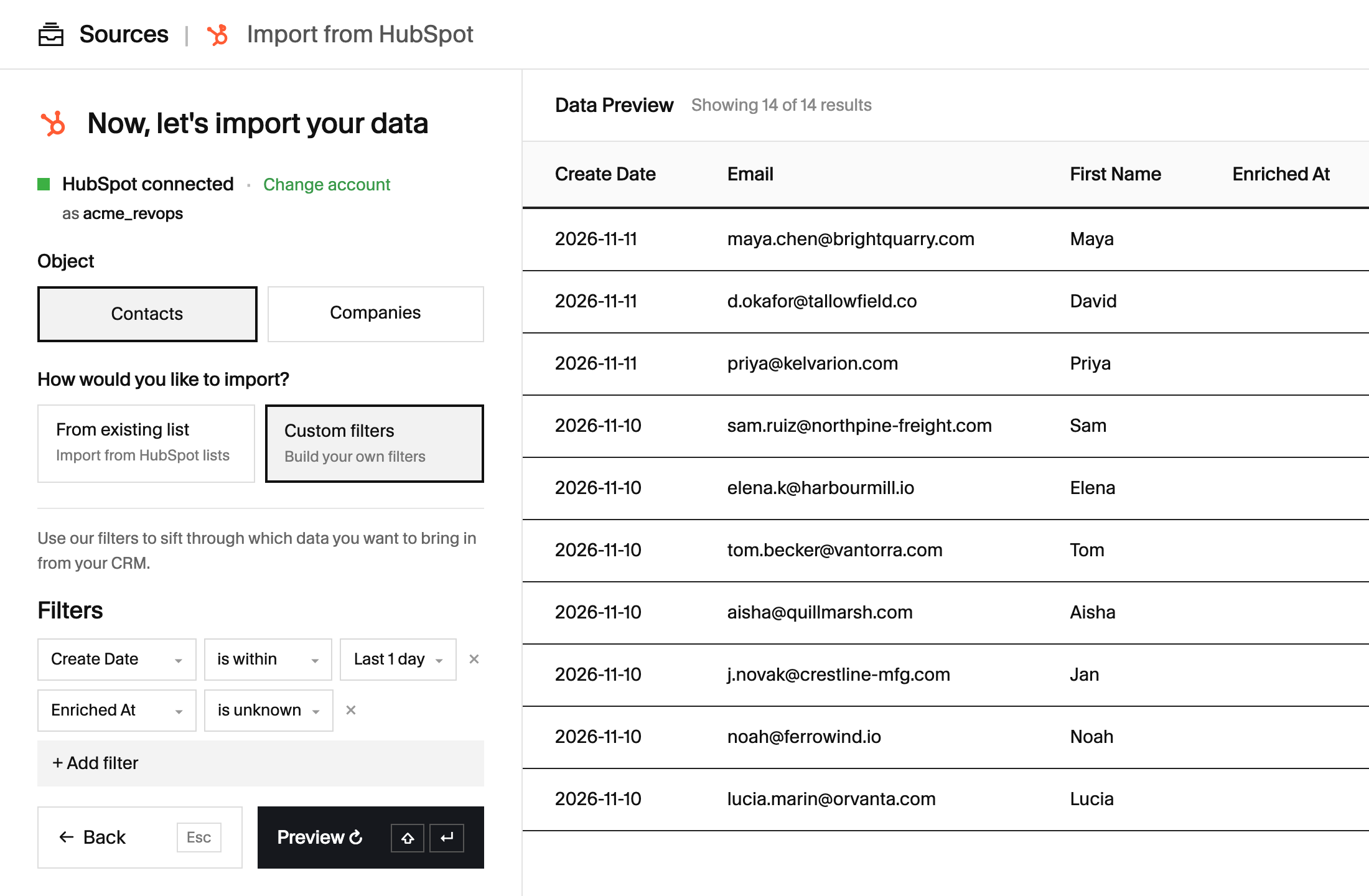
New records arrive from imports, integrations, and reps adding them by hand. Enrich them as soon as they land, before anyone works them.
- Watch for new records. Point your enrichment at a HubSpot list or filter, like "created recently and not yet enriched", and pull new contacts and companies on a schedule.
- Check the domain. Every company lookup runs on the domain, so an alternate or stale domain sends everything after it to the wrong company. Confirm the current one first.
- Enrich the company first. Firmographics, tech stack, open roles, and your own research questions, all keyed on the domain. Contacts inherit that context.
- Then enrich the people. Find a verified work email and mobile number through a waterfall of providers (see our guide to building an email enrichment waterfall), then add seniority, department, and LinkedIn details.
- Write back to the same record. Update the HubSpot record you pulled by its record ID, so nothing gets duplicated.
- Mark it done. Set an "Enriched at" date so the record drops out of the list and never gets enriched twice.
Azumuta, a HubSpot customer, raised its enrichment coverage from 16% to over 66% of contacts with a provider waterfall, adding verified emails and phone numbers across Europe and pushing only complete, accurate records into HubSpot. Read the Azumuta case study.
Trigger 2: Enrich leads when they fill a form
HubSpot's form shortening hides the fields it can already fill. That keeps forms short, but the lead still only gets HubSpot's basic fields. Automated enrichment goes further, and runs before your scoring and routing do.
- Ask for a work email, and little else. Enrichment fills in the rest.
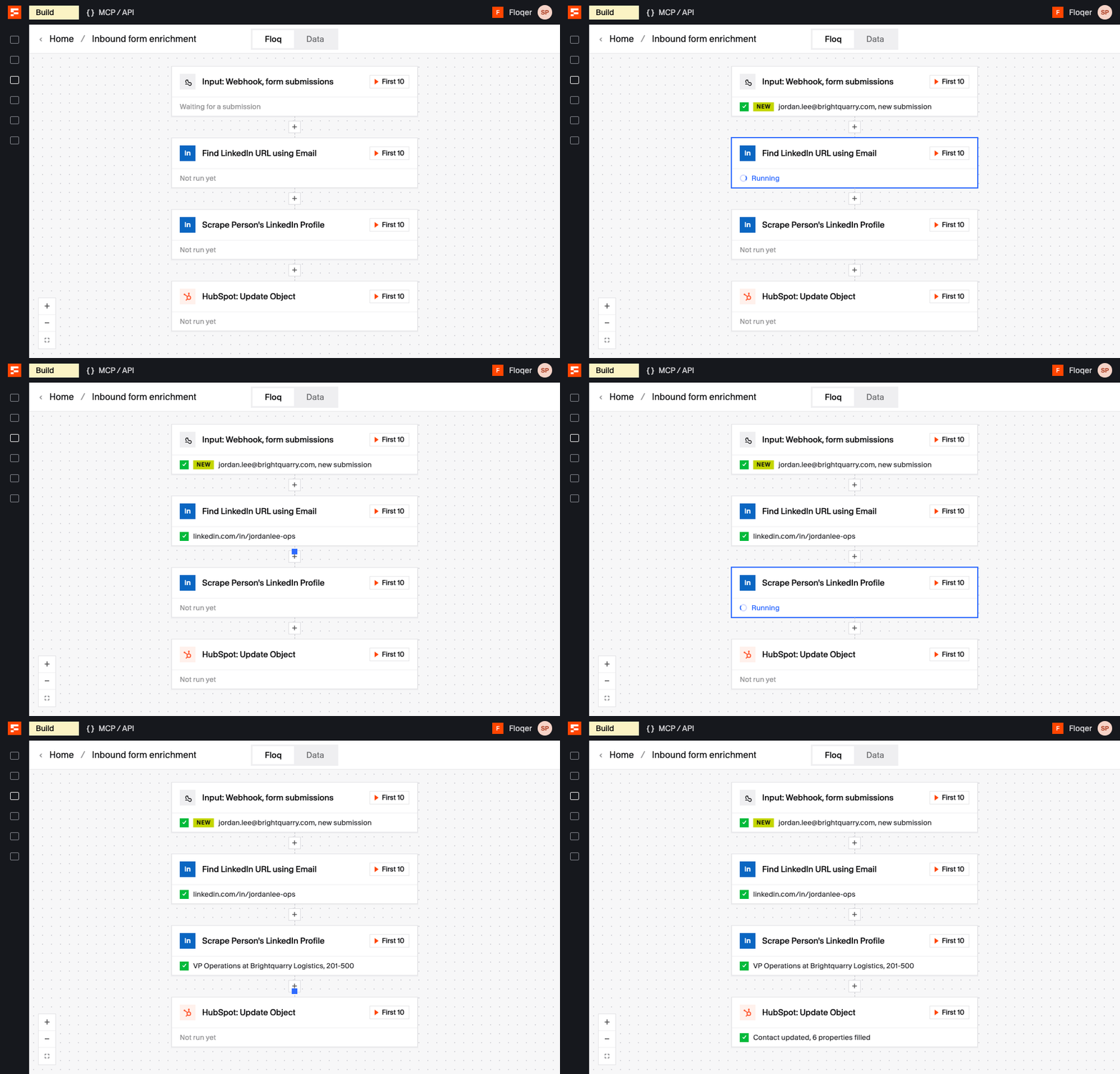
- Send each submission to your enrichment. A HubSpot workflow can post new submissions to a webhook, or new contacts can be pulled from a HubSpot list on a schedule.
- Filter first. Remove spam and competitors, and decide what to do with personal email addresses, before you spend anything enriching them.
- Enrich, then score and route. Write the enriched fields to HubSpot before lead scoring and owner assignment run, so no lead is routed on half its data.
- Plan for misses. When enrichment finds nothing, flag the lead for a person to review instead of dropping it.
Speed matters here. The sooner an inbound lead reaches the right rep with a complete record, the better your chance of booking the meeting.
Structured AI automates lead enrichment on every form fill. Content downloads and website leads land in HubSpot on the marketing side, and Floqer disqualifies competitors, finds each lead's LinkedIn profile, fills in missing fields, researches the company, and scores and routes the lead to the sales team, who work in Salesforce. Inbound processing got 80% faster. Read the Structured AI case study.
Trigger 3: Enrich companies and people that visit your website
HubSpot's buyer intent identifies the companies visiting your site, and can add them to your CRM using HubSpot Credits. It doesn't identify individual people, and it doesn't enrich anyone past the basics.
- Identify the visitor. A tracking pixel on your site matches visits to companies, or to the individual people behind them, along with the pages they viewed.
- Enrich them. Run the same company and person enrichment as above.
- Check HubSpot before you create anything. The visitor may already be there, sometimes under a former company.
- Same person, same company: update the record and log the visit.
- Same person, former company: update the existing contact with their new company and title, or mark them as no longer at the old company. Never create a second contact.
- Not in HubSpot: create the contact and the company.
- For company-only visits, find the right people. Pull the contacts at that company who match your buyer personas.
- Send it to Slack so the owner can act on it (next section).
Identifying individual visitors is regulated differently by region. Check what your privacy policy and local law allow before you turn it on.
Send it to Slack: review, notify, act
An enriched record only matters if someone acts on it. Send each new record, form fill, or website visit to Slack with the details that matter, and let the team decide there.
Tag the owner
Look up who owns the company or contact in HubSpot and @mention them in the message. Slack mentions use the person's Slack user ID, so keep a small table that maps each HubSpot owner to their Slack ID. If nobody owns the record, post it to a shared channel and let someone claim it with an "Assign to" people picker, which then sets the owner in HubSpot.
Keep a human in the loop
Add a decision to the message, like Approve or Reject. Nothing writes to HubSpot until someone answers. Approve creates or updates the record. Reject stops there, or tags the record so it isn't sent again.
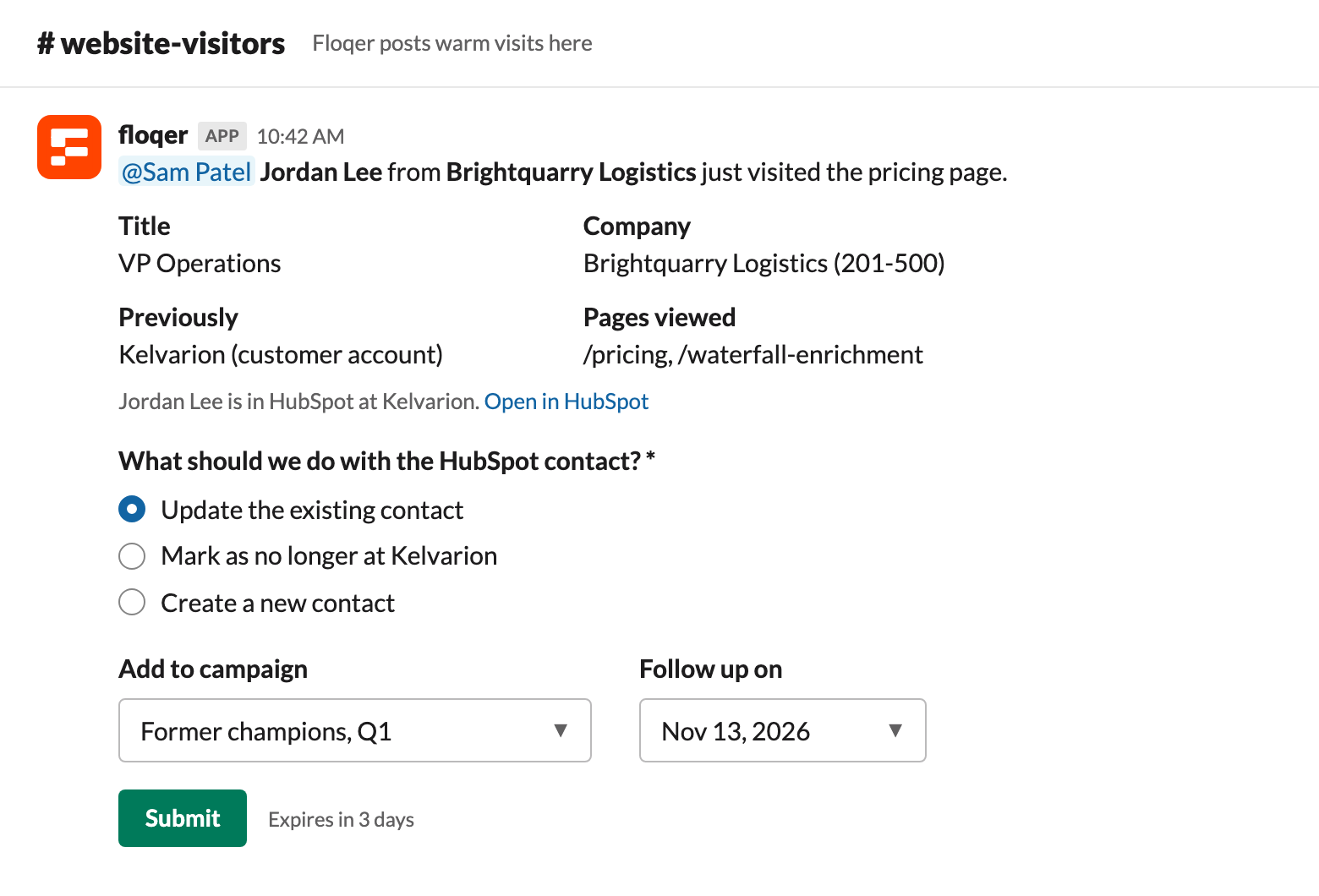
This is where the former-company case belongs: "Jordan Lee is in HubSpot at Acme. Update the existing contact, mark them as no longer at Acme, or create a new contact?" The rep picks one, and the workflow does it.
Act straight from Slack
Slack messages can carry form inputs, so the next step happens without opening HubSpot:
- A dropdown of campaigns or sequences to add the person to, which can be filled automatically
- Checkboxes to choose which contacts to add, for website visits that only identify the company
- A date picker for the follow-up, saved to the record so a HubSpot workflow can create the task
- A notes field, saved to the HubSpot record
What to put in the message
Who it is, their company, what they did (pages visited or form submitted), the enriched details that make it worth a look, their previous company if they moved, and a link to the HubSpot record. If they came from a customer account, say so. A past champion at a new company is one of the warmest leads you'll get.
Anyone who can see the message can answer, and the first Submit wins, so post to a private channel to control who decides. Set the buttons to expire after a few days so stale leads don't linger.
Write back to HubSpot without duplicates or overwrites
Automation can damage data quality at scale, so set the write rules before you turn it on.
- Find the duplicates you already have. Before you automate, pull your contacts and companies and flag the ones that share an email, company domain, or LinkedIn URL. Floqer flags them for you, so you can merge them in HubSpot once, and it matches every new record to an existing one instead of creating another.
- Match on the person, not the work email. A work email changes when someone changes jobs, so a lookup on the new email misses the old record. Match on personal email, LinkedIn URL, or name plus the previous company's domain.
- Update by record ID. Once you've found the record, update it by its HubSpot record ID. Create a new record only when the lookup finds nothing.
- Fill empty fields, don't overwrite them. Decide field by field. A job title can be refreshed. A name a rep corrected by hand should stay.
- Use separate properties for fields reps edit. Write enriched values to properties like "Enriched job title", so a rep's edit is never lost.
- Never write blanks. An empty result should leave the existing value alone.
- Record the source and date. Two properties, "Enrichment source" and "Enriched at", tell you where a value came from and when to refresh it.
Keep records fresh after day one
Enrichment goes stale. People change jobs, and companies raise, hire, and rebrand. HubSpot's continuous enrichment keeps its own basic fields current. These cover everything else.
- Re-enrich on a schedule. Pull records whose "Enriched at" date is older than 90 days and run them again.
- Watch for job changes. When a contact's current company no longer matches HubSpot, update the record and alert the owner, especially for former customers.
- Re-enrich at key moments. A new deal, a reply after months of silence, or a return visit to your pricing page are all good reasons to refresh.
Example: one workflow for all three triggers in Floqer
Here's how the pieces fit together in one Floqer workflow, using Floqer's HubSpot integration.
- Sources: a HubSpot list of new records, a webhook for form submissions, and the website visitor pixel.
- Company enrichment: firmographics, tech stack, open roles, and an AI research question, keyed on the confirmed domain.
- Person enrichment: a verified work email and mobile number through provider waterfalls, plus seniority and LinkedIn details.
- Match against HubSpot: look up the person by LinkedIn URL, personal email, or name and previous domain, and catch the former-company case.
- Slack: @mention the owner, ask for a decision and a campaign, and route on the answer.
- Write back: update the HubSpot record by ID, fill empty fields only, and stamp the source and date.
You can build the same flow with other tools. What matters is the order: confirm the domain, enrich, match before you create, let a person decide where it counts, and write back without overwriting good data.
To build it in Floqer, sign up for free and connect HubSpot.
FAQ
Does HubSpot enrich contacts automatically? Yes, once a Super Admin turns data enrichment on. It fills empty properties on new records automatically, and on existing records you select. Contacts need a business email to be enriched.
Is Breeze Intelligence the same as HubSpot data enrichment? Mostly. Breeze Intelligence was HubSpot's earlier name for its data enrichment, buyer intent, and form shortening features, built on Clearbit, which HubSpot acquired in 2023. HubSpot now sells them as data enrichment and buyer intent.
Does HubSpot data enrichment use credits? No. HubSpot's data enrichment doesn't use HubSpot Credits. Smart properties and buyer intent do.
Can HubSpot find phone numbers for contacts? No. HubSpot adds a main phone number for companies, but not mobile numbers or direct dials for contacts. For those, use a phone waterfall that checks several providers.
How do I enrich HubSpot leads from form submissions? Send each submission to your enrichment tool with a HubSpot workflow webhook, or pull new contacts from a HubSpot list. Enrich them, then write the results back before lead scoring and routing run.
Can HubSpot show which companies visit my website? Yes. HubSpot's buyer intent uses the HubSpot tracking code to identify the companies visiting your site, and uses HubSpot Credits to add them to your CRM. It doesn't identify individual people.
What happens if a website visitor is in HubSpot at a previous company? Look them up by LinkedIn URL, personal email, or name and previous company domain before creating anything. Then update the existing contact with their new company, or mark them as no longer at the old one. Don't create a duplicate.
Can my team approve or route enriched leads from Slack? Yes. Send each lead to Slack with inputs like Approve or Reject, a campaign dropdown, or an owner picker. The workflow waits for an answer and routes the lead based on it.
Can enrichment find duplicate contacts in HubSpot? Yes. Match records on email, company domain, or LinkedIn URL to flag the duplicates you already have, then merge them in HubSpot. Then have your enrichment check every new record against existing ones before it creates anything, so duplicates stop building up.
Will enrichment overwrite my existing HubSpot data? HubSpot's built-in enrichment fills empty fields only, unless you turn on overwriting. With your own enrichment, write to empty fields or separate enrichment properties, and never write blanks.
See it running on your own HubSpot. Get a demo.