Introducing Saved Views in Floqer, Sync Audiences to LinkedIn Ads and Slack Notifications for Workspace Activity
Until today, you had to remember your filters and set them again every time you switched between them. Now you can save them as views and switch between views in one click. This release also brings audience sync to LinkedIn Ads, Flo plans for complex requests, Slack notifications for workspace activity, Salesforce imports with no row limit, the User role in single sign-on organizations and cheaper lookalike companies.
Platform Features
2Introducing Saved Views in Workflows
Until today, you had to remember which filters you used on a workflow table. Now you can save them as a view, change filters freely and switch back and forth in one click.
Here is how it works:
-
Set your filters, sort and the In-Progress switches. Open the View menu, next to Filter, and pick Save current view….
-
You can also save straight from the filter popup with Apply & save view.
-
Pick a saved view to apply it. It replaces your current filters, sort and In-Progress switches.
-
Change a filter after applying and the view shows as Edited. Update view saves the change.
-
Rename or Delete a view from the same menu. All rows takes you back to the whole table.
Everyone who can open the workflow sees its views. Anyone who can edit the workflow can save, rename or delete them.
-
Slack Notifications for Workspace Activity
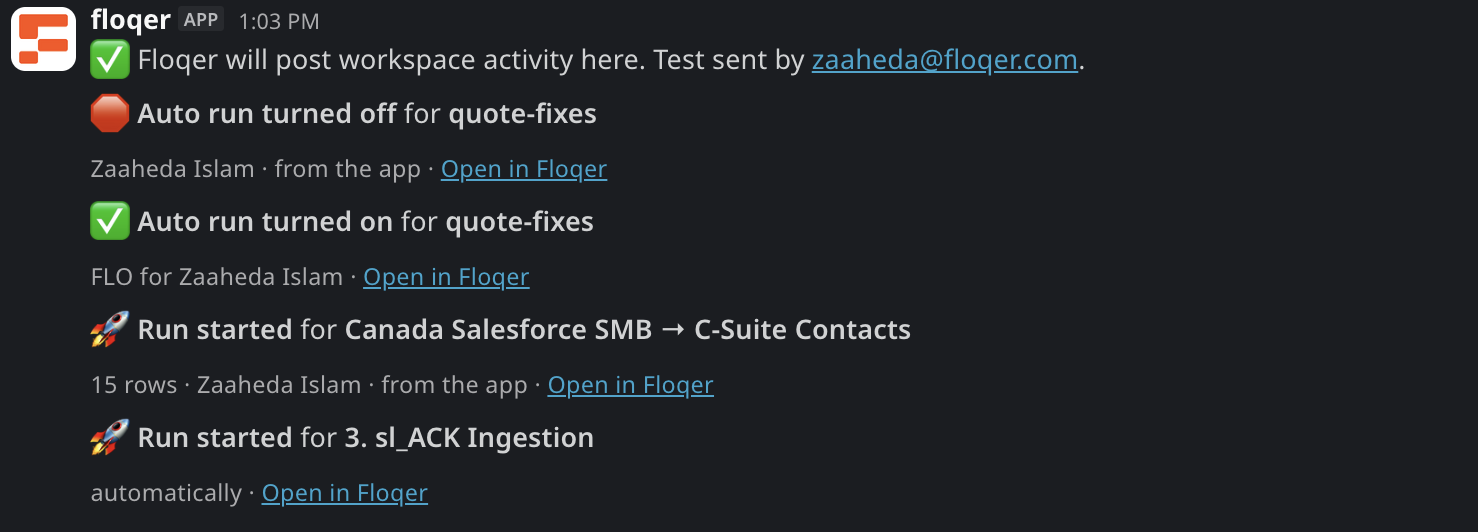
Until today, there was no way to know when a teammate turned auto-run on or started a large run. Now Floqer posts these events to a Slack channel of your choice.
Here is how you set it up:
-
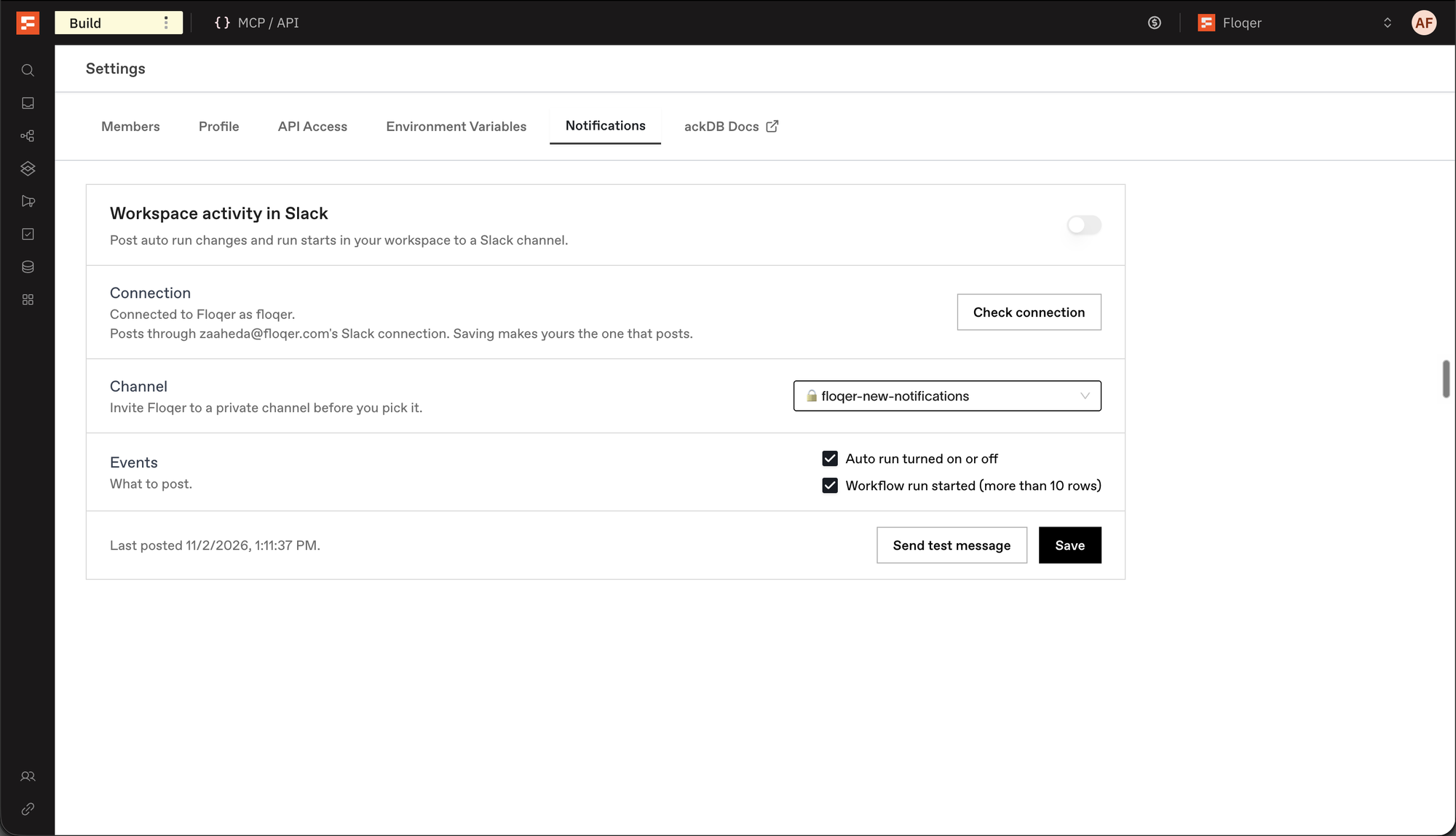
Go to Settings and open Notifications. Only Admins see it.
-
Turn on Workspace activity in Slack.
-
Pick a Channel. Invite Floqer to a private channel before you pick it.
-
Tick the events you want. As of today there are two: Auto run turned on or off and Workflow run started (more than 10 rows). More are coming soon.
-
Click Send test message to see it land in Slack.
Each post names the workflow, the number of rows, who started it and where from, with an Open in Floqer link.
Note
Posts go through the Slack connection of the Admin who saves the settings. Connect Slack on the Connections page first.
-
Agentic Building
2Flo Now Plans Complex Requests First
Until today, Flo acted on every request straight away. Now Flo decides for each message whether to act or to show you a plan first. A plan comes with an Approve & run button. Reply to change the plan before it runs. In Slack, the buttons are Approve & run and Revise.
Gmail, Zoho and AI Ark Sources Through the API
Until today, your agent could not pull Gmail, Zoho or AI Ark data through the API. Now it can create and preview five more sources:
- Import from Gmail
- Import from Zoho
- Import from AI Ark
- LinkedIn posts by keyword
- Companies hiring for specific roles
You can do this headlessly from MCP, APIs or any agentic platform.
API reference: List Sources, Create Source, Preview Source, Get Source Field Options
Note
Extract from Website and Companies by Buying Intent can no longer be created through the API. Lists you already built with them keep working.
Data & Integrations
5Introducing LinkedIn Ads in Floqer
LinkedIn Ads matched audiences let you run campaigns against a list of people you choose. A lot of our users build those lists in Floqer and upload them by hand, so we built a native LinkedIn Ads integration. Now you can add leads to a matched audience from a workflow. Removing them works the same way.
Here is how you set it up:
-
Go to Connections, select LinkedIn Ads and sign in with your LinkedIn account.
-
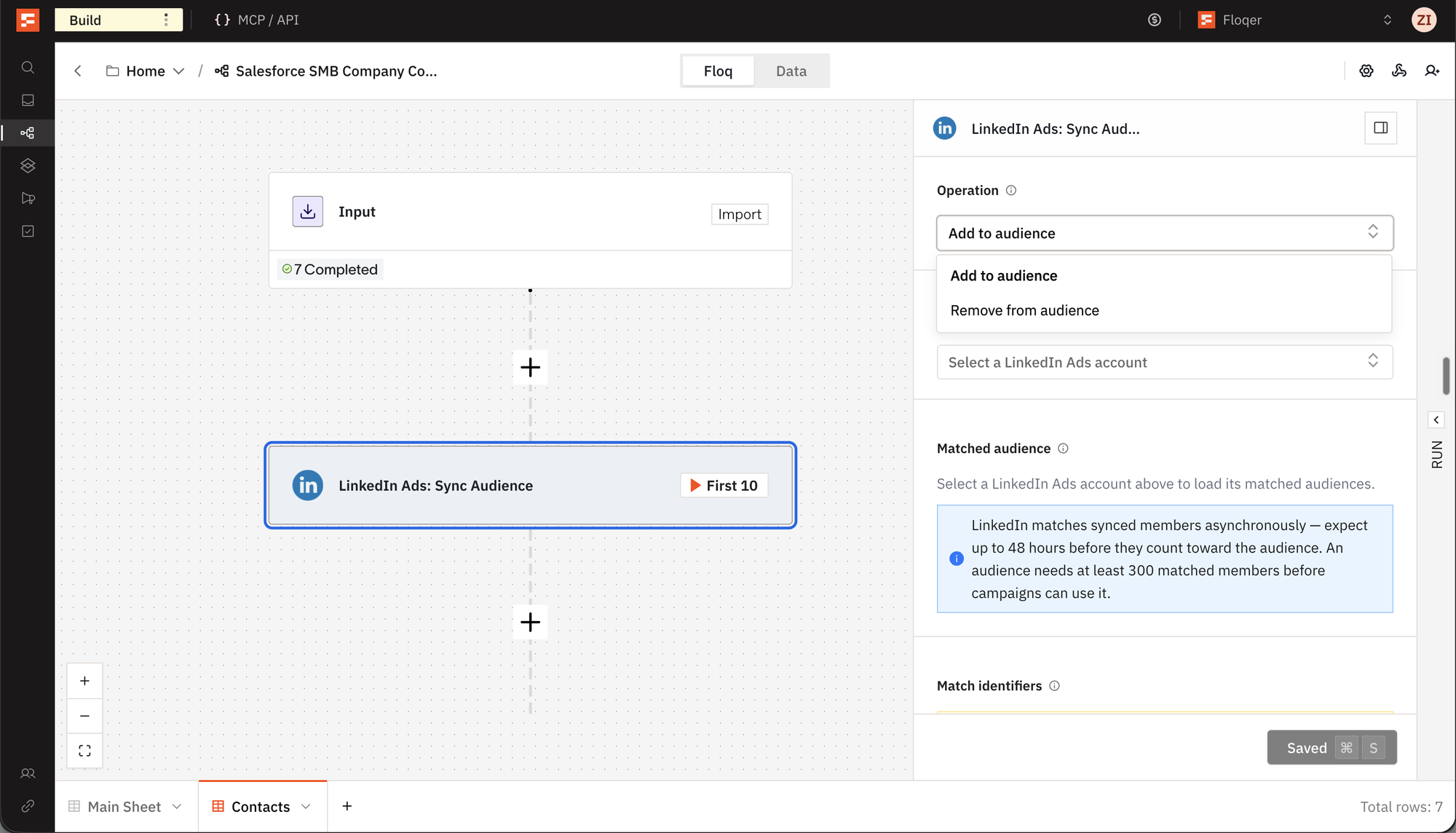
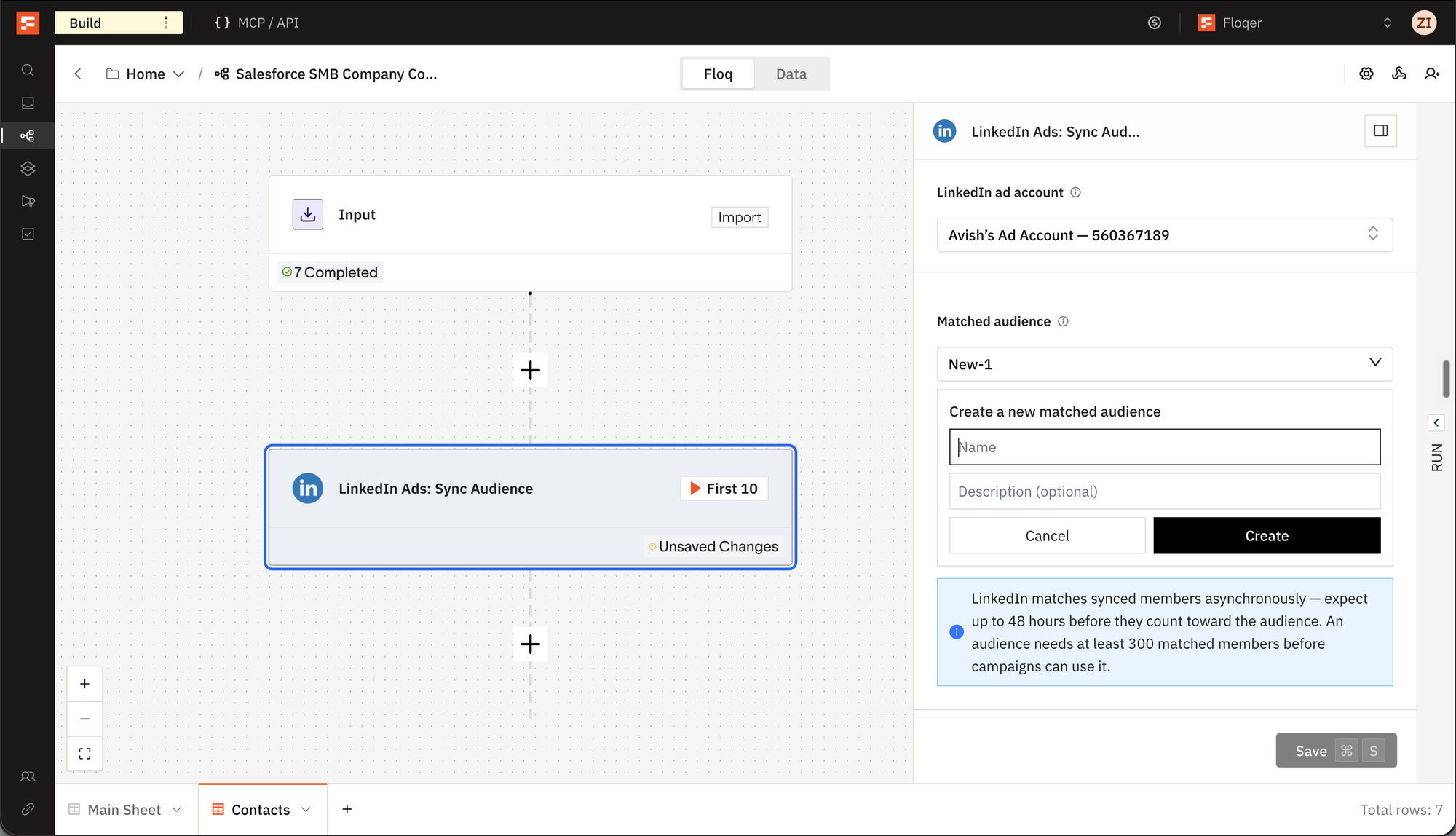
Add LinkedIn Ads: Sync Audience to your workflow.
-
Pick Add to audience or Remove from audience.
-
Pick your LinkedIn ad account and the Matched audience. To start a fresh one, pick Create a new matched audience and give it a name.
-
Map the inputs:
- Email: the lead's email.
- First name and Last name: use these when you have no email.
- Job title, Company name and Country code: optional. They improve the match rate.
- Email is already hashed: turn this on when your column already holds SHA-256 hashes.
You need an email, or a first and last name, to save the action. It costs no credits.
Note
LinkedIn takes up to 48 hours to match the people you sync. An audience needs at least 300 matched members before a campaign can use it.
-
Check a Company's Ads with Adyntel
Adyntel pulls a company's ads from Google's Ads Transparency Center and the LinkedIn and Meta ad libraries, so you can see what a company is advertising before you reach out. We built three native Adyntel actions.
There are three new actions:
- Adyntel: Check for Google Ads shows the Google ads a company is running.
- Adyntel: Check for LinkedIn Ads shows the LinkedIn ads a company is running.
- Adyntel: Check for Meta Ads shows the Facebook and Instagram ads a company is running.
Here is how to configure it:
-
Go to Connections, select Adyntel and paste your API key and account email.
-
Map Company Domain. The LinkedIn action also takes a LinkedIn Page ID. The Meta action also takes a Facebook Page URL.
-
Narrow the search with Country and Media Type on Google and Meta, Date Range on LinkedIn, or Active Status on Meta.
Each row gets the number of ads and the ads themselves. Meta also returns the landing pages and the platforms the ads run on. The actions cost no Floqer credits. Adyntel charges your account 1 credit per search. Extract Text makes it 2.
You can also do this headlessly from MCP, APIs or any agentic platform.
Note
Google matches ads by domain, so the results can include other advertisers' ads. The Main Advertiser column shows who ran most of them.
New Email Verifier: BounceBan
BounceBan checks whether an email address can receive mail, catch-all domains included. We built a native BounceBan action.
There are two ways to use BounceBan today.
Option 1
-
Add BounceBan: Email Verification and map Email.
-
Each row gets a Result of deliverable, risky, undeliverable or unknown, and a Score. It costs 0.5 credits.
Option 2
-
In Find Work Email, set Email Validation to BounceBan. In Find Verified Work Email, add BounceBan as a verifier.
-
Floqer finds the email, then BounceBan checks it. Find Work Email keeps only deliverable results. The check costs 0.5 credits.
You can also do this headlessly from MCP, APIs or any agentic platform.
-
10x Cheaper Company Lookalikes
Floqer: Lookalike Companies now costs 0.1 credits per lookalike returned, down from 1 credit. You get up to 3 lookalikes per company. Map a company domain or LinkedIn URL. Similarity Score, the NAICS and SIC descriptions and Company Logo are no longer filled in.
New Price for Get Company Headcount by Job Role
Get Company Headcount by Job Role now costs 4 credits. It was 1 credit.
Improvements
5Auto-Run Now Configurable from the Data View
Changing auto-run meant opening Sheet Settings. Now the switch sits in the Data view toolbar, between Refresh and the cache toggle. Only the workflow owner can change it. Sheet Settings keeps Schedule, Caching and Environment Variables.
Import Your Whole Salesforce Without Hitting Rate Limits
Until today, a Salesforce import stopped at 50,000 records. Every page it fetched counted against your Salesforce API limit. Now an import runs as one Salesforce bulk job and downloads records in pages of 10,000, so a large pull uses a fraction of the API calls. There is no row limit. The list opens right away and fills in the background. Address fields arrive as their parts, such as Billing Street and Billing City.
Note
A list that hit the old limit gets the rest of its records on the next manual refresh.
User Role Now Available in SSO Organizations
Until today, an organization on single sign-on could not invite anyone as a User. Now you can. Go to Settings → Members. When you invite someone, pick User as their role. A User can run Shortcuts and build lists.
Shorter Webhook URLs
Until today, a workflow's webhook URL was too long for platforms that cap URLs at 250 characters. Now it is 118 characters. The URLs you already use keep working.
Flo Messages Now Show When They Were Sent
Each message in the Flo panel now shows when it was sent. Replies show when they finished.
Bug Fixes
9-
Table filters are more consistent when you switch between the Floq and Data views.
-
Salesforce, Zoho and Snowflake sources have improved scheduling reliability.
-
Row numbers are clearer on large tables.
-
MCP connector has a smoother first connection for single sign-on users.
-
Call Shortcut cells have better status reporting, long runs included.
-
Duplicating a workflow has improved reliability for sheet settings.
-
People Who Visited Your Website has improved pause and resume handling.
-
Companies Hiring for Specific Roles API previews show more accurate company counts.
-
CSV import has clearer column names in the Map your columns step.