Stop a Running Workflow, Forms in Slack, Code Node, Claude Models in Web Agent, Optional HubSpot Permissions and New Sources Gong, Luma and PostHog
Until today, there was no way to stop a workflow once it started running. You can now stop the actions that have not yet started processing. This release also adds forms in Slack messages that your workflows wait for, a Code Node to run JavaScript and Python and Claude models in Web Agent. Gong, Luma and PostHog join as Sources. EmailBison, Sumble and SecondBrain Labs join as integrations. HubSpot permissions are now optional. Company and people data from Floqer and AI Ark is now cheaper. Your agents can now update rows, move workflows into folders and use six new MCP tools.
Platform Features
3Stop a Running Workflow
Until today, there was no way to stop a workflow once it started running. You can now stop the actions that have not yet started processing.
You can stop the entire workflow or stop a specific column.
Stop the entire workflow
Click Stop next to the Run button at the top of your workflow table. Floqer stops all the rows that are still queued in that sheet.
Stop a column
Hover over the column's header and click Stop next to Run. Only the rows that are still queued on that column are stopped.
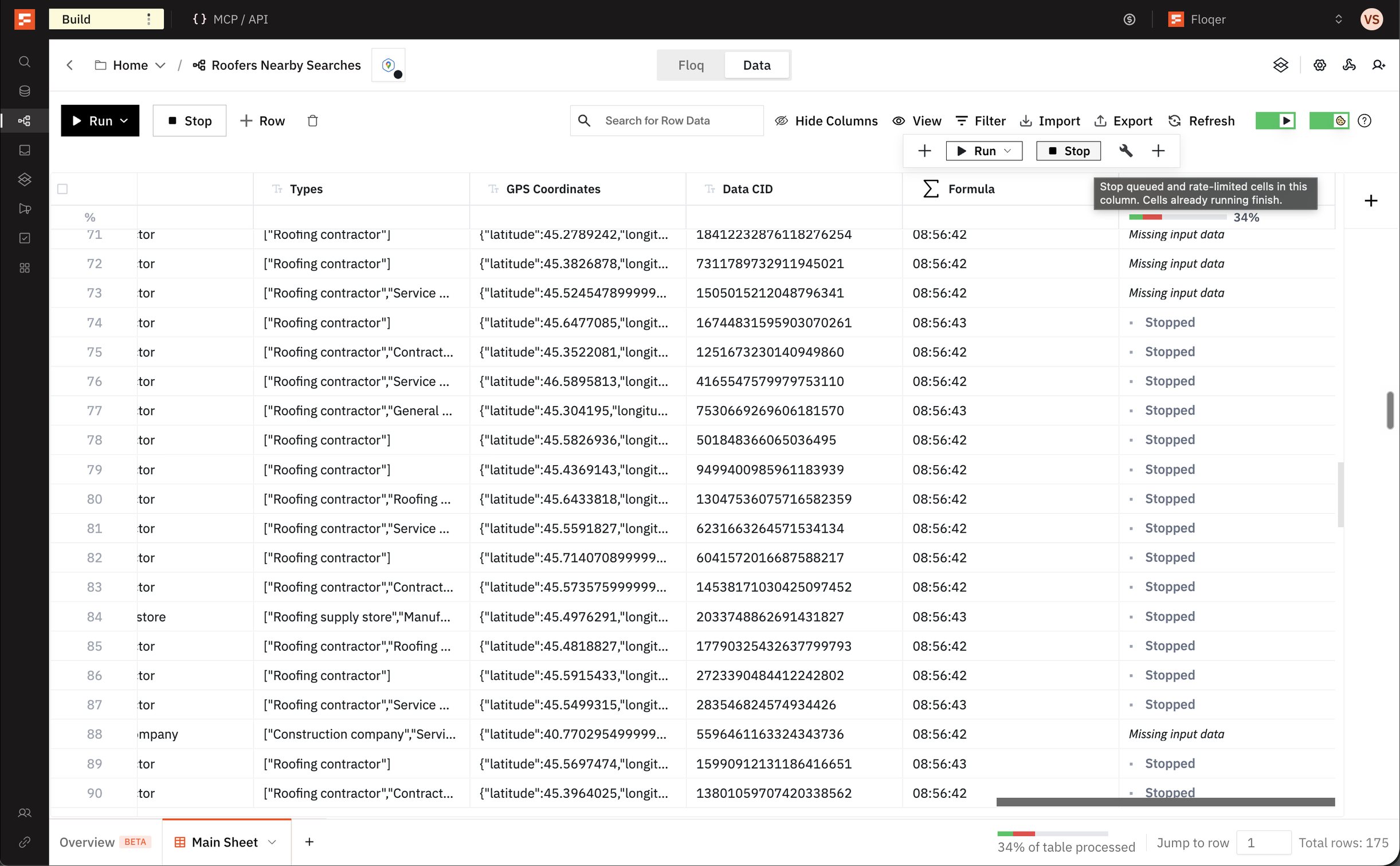
The rows you stopped are marked Stopped. You can run them again whenever you are ready.
Note
Stop only works on cells that show Queued. A cell that shows In progress has already started, so it will finish. That row does not move on to its next action when you stop the entire workflow.
Collect Responses in Slack Messages
Until today, a Slack message from a workflow could only ask someone to click Continue. Now Slack: Send a message can ask questions and save the answers to your workflow table. This enables you to get an approval or a missing detail from your team before a row moves on.
Here is how you set it up:
-
Add Slack: Send a message and turn on Create form.
-
Add your questions under Form inputs. You can add up to 10. Each one can be a text field, a dropdown, a people picker, a date, a time, checkboxes or radio buttons.
-
Add your Buttons. A button can continue the row or stop it. You also choose if it saves the answers.
-
Set Response expiry (days) from 1 to 30. The default is 3.
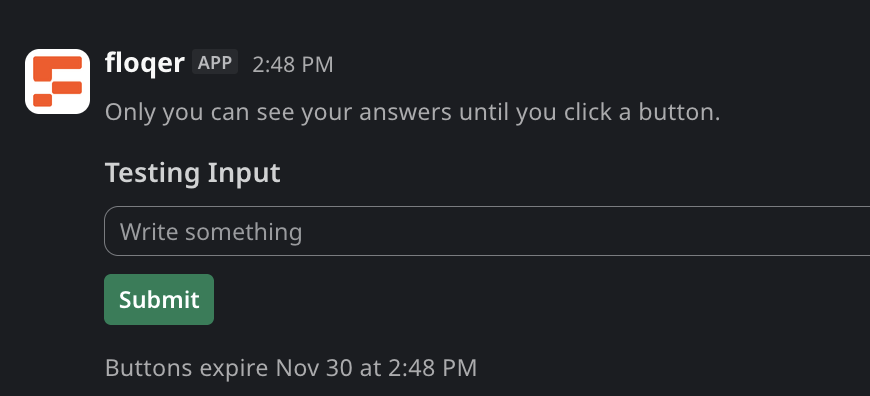
The row waits until someone clicks a button in Slack. Each answer becomes an output you can use in downstream actions. You also get Button clicked and Responded by as outputs.
You can also do this headlessly from MCP, APIs or any agentic platform.
-
Introducing Code Node: Run JavaScript and Python in Your Workflows
Building workflows sometimes requires complex logic. A simple formula is often not enough to transform your data. So we introduced Code Node. This enables you to write JavaScript and Python and run them in your workflows.
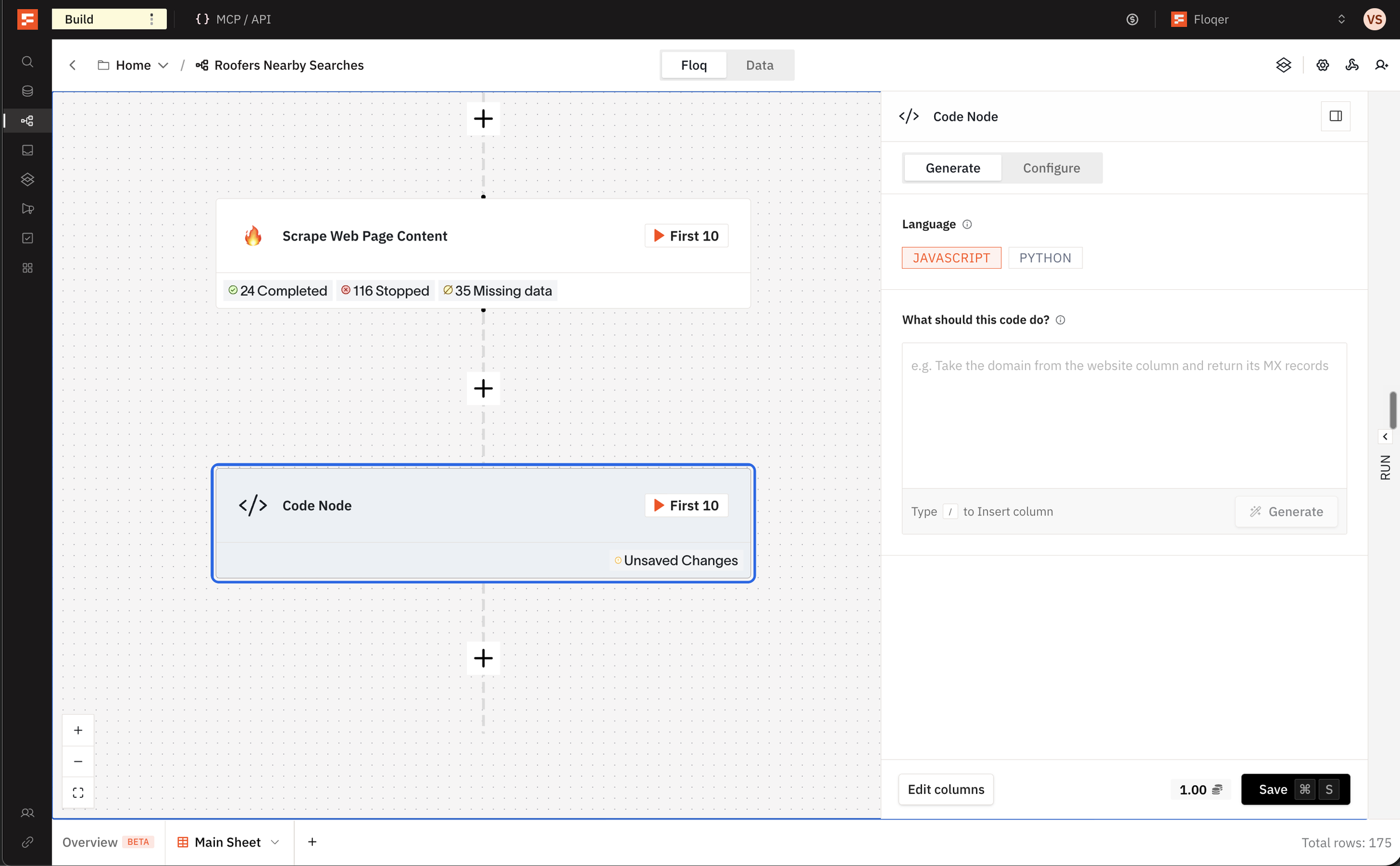
Add Code Node to your workflow and pick JavaScript or Python under Language. You can generate the code with AI or write it yourself.
Generate the code with AI
Open the Generate tab and describe what the code should do. Type / to pick the values it should use. Click Generate. Floqer writes the code and sets the outputs for you.
Write the code yourself
Open the Configure tab and write your code under Code. Type / to insert a value from an upstream action. Add an output under Outputs for each value your code returns. Use the same names in your code.
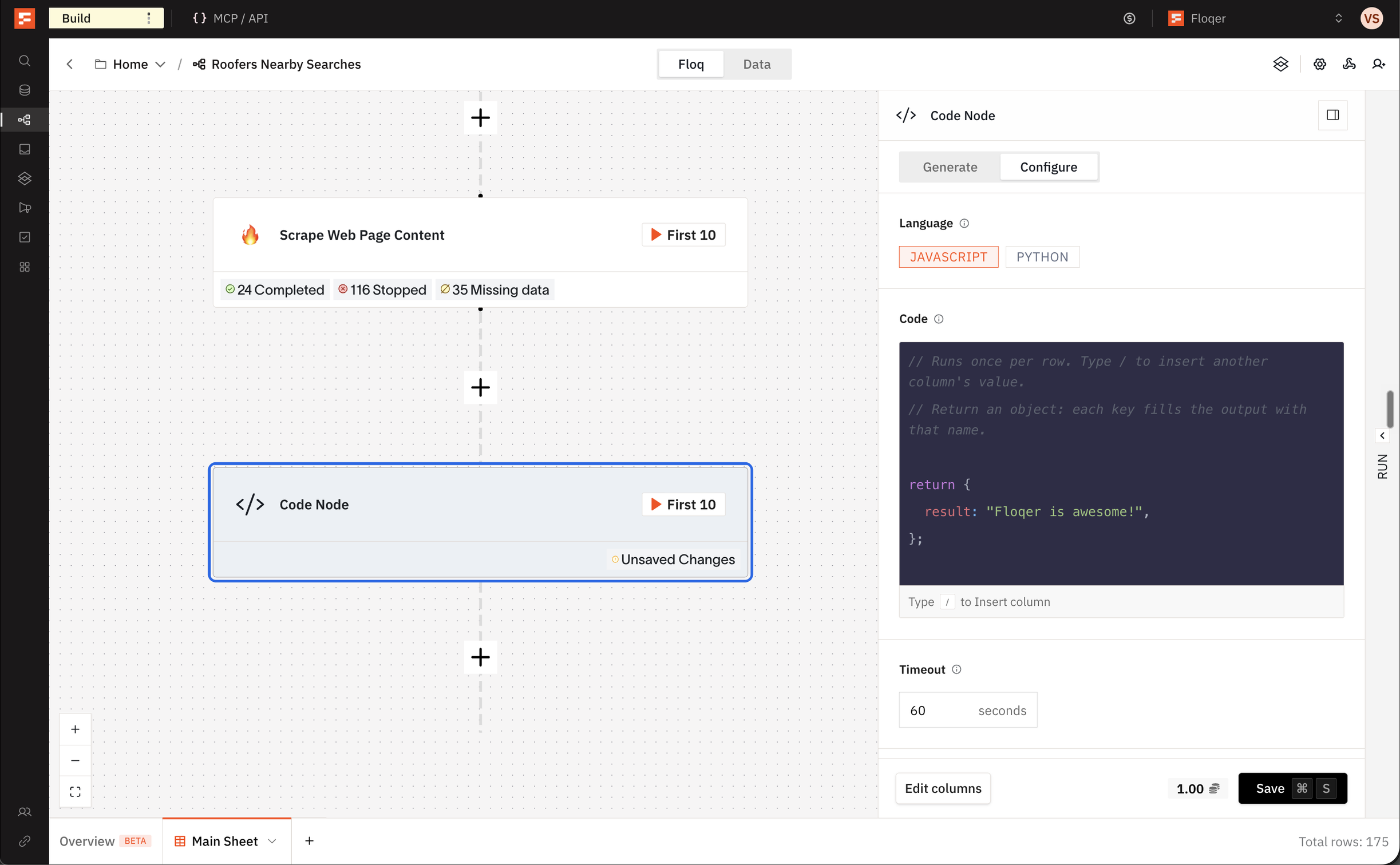
You can use each output in your downstream actions.
Your code can call APIs. Use fetch in JavaScript and requests in Python.
A row can run for 60 seconds. You can change Timeout to anything from 1 to 300 seconds.
It costs 1 credit per minute your code runs. A row that runs for 6 seconds costs 0.1 credits.
You can also do this headlessly from MCP, APIs or any agentic platform.
API reference: Add Action, Configure Action
Note
A run that fails is still charged for the time it ran.
Data & Integrations
12Claude Models Now Available in Web Agent
You can now pick Claude models in Web Agent.
Model Credit Cost Claude Fable 5.2 59 Claude Opus 5.5 21 Claude Sonnet 5.5 17 Claude Haiku 5.5 5 New Prices for GPT Models in Web Agent
We have updated the credit cost of these GPT models in Web Agent.
Model Previous Credit Cost New Credit Cost GPT 6.1 Sol 6 13 GPT 6.1 Terra 3.5 8.5 GPT 6 Luna 1 4.5 GPT 5.2 5 6 GPT 5 8 11 GPT 5 Nano 0.2 4.5 Lower Prices for Company and People Data
We have reduced the credit cost of these actions and Sources.
Action or Source Previous Credit Cost New Credit Cost Find Verified Phone Number using LinkedIn URL with Floqer 5 1 Floqer: Person contact enrich 5 1.5 Floqer: Company Enrich 1 0.1 Floqer: Enrich Company Funding 1 0.02 Floqer: Lookalike Companies 0.1 per company 0.02 per company AI Ark: Find Employees at Company 0.2 per employee 0.1 per employee Find Companies 0.1 per company 0.02 per company Find People 0.5 per person 0.1 per person Companies and People by AI Ark 0.5 per person 0.1 per person 0.1 per company 0.02 per company Bring Your Gong Calls into Floqer
Gong records and transcribes your sales calls. Now you can import your calls with a native Gong Source. Each call becomes one row with its transcript, participants and key points.
Here is how you set it up:
- Go to Connections and connect Gong.
- Create a Gong Source. Set a Start Date and an End Date to import past calls.
- Pick a Workspace or Hosts to import only their calls.
- Set a Frequency to keep the Source up to date.
Importing from Gong costs no credits.
You can also do this headlessly from MCP, APIs or any agentic platform.
API reference: Create Source
Bring Your Luma Event Guests into Floqer
Luma is a platform for hosting events and selling tickets. Now you can import the guests of your events with a native Luma Source. Each registration becomes one row.
Here is how you set it up:
- Go to Connections, select Luma and paste your API key. You create one in Luma under Calendar > Settings > Developer > API Keys.
- Create a Luma Source and pick your Events.
- Pick a Guest status to import only the guests with that status.
- Turn on Checked in only to import the guests who attended.
- Set a Frequency to keep the Source up to date.
Importing from Luma costs no credits.
You can also do this headlessly from MCP, APIs or any agentic platform.
API reference: Create Source
Note
You need Luma Plus to create an API key. One key reads one Luma calendar.
Bring Your PostHog Usage Data into Floqer
PostHog is a product analytics platform. Now you can import your product usage with a native PostHog Source. You write a SQL query and each row it returns becomes a row in Floqer. This enables you to build upsell and churn lists from how your accounts use your product.
Here is how you set it up:
- Go to Connections, select PostHog and enter your Personal API key, Host and Project ID.
- Create a PostHog Source and write your SQL Query.
- Pick a Key Column. Floqer uses it to match the rows it already imported, so they update and do not duplicate.
- Set a Frequency to run the query again on a schedule.
Importing from PostHog costs no credits.
You can also do this headlessly from MCP, APIs or any agentic platform.
API reference: Create Source
Note
Your PostHog key needs read and write access to Endpoints. Floqer saves your query as an Endpoint in your PostHog project.
Log Emails on HubSpot Contacts
Until today, there was no way to log an email on a HubSpot contact from a workflow. Now you can with HubSpot: Create Object. This enables you to keep the emails you send from your outreach tools on the contact's record in HubSpot.
Here is how you set it up:
- Add HubSpot: Create Object and pick Email under Choose HubSpot Object.
- Map the Contact Email. The contact has to exist in HubSpot first.
- Fill in the email under HubSpot Object Properties:
- Subject and Body: what the email said.
- From email and To email: who sent it and who received it.
- Sent at: when the email was sent. Leave it empty to use the time the action runs.
- Direction and Status: leave them empty to log the email as sent.
The action logs the email on the contact. It does not send it.
It costs no Floqer credits.
You can also do this headlessly from MCP, APIs or any agentic platform.
API reference: Add Action, Configure Action
Add Leads to EmailBison Campaigns
EmailBison is an email sequencer with private warmup. We built three native EmailBison actions so you can add leads to your campaigns from a workflow.
Here is how you set it up:
- Go to Connections, select EmailBison and enter your instance URL and API key.
- Add EmailBison: Create or Update Lead and map Email, First Name and Last Name. Under Existing Lead Behavior, choose how a lead that already exists is updated.
- Add EmailBison: Add Lead to Campaign and pick a Campaign. Map a Lead ID. You can map Email, First Name and Last Name instead.
- Add EmailBison: Get Lead and map Email or Lead ID. It returns the lead's details with its opens and replies.
The three actions cost no Floqer credits.
You can also do this headlessly from MCP, APIs or any agentic platform.
Find the Technologies a Company Uses with Sumble
Sumble finds the teams and technologies inside your target accounts. We built a native Sumble action so you can check which technologies a company uses.
Here is how you set it up:
- Add Sumble: Enrich Company Technologies and map Company Domain.
- List the Technologies you want to check.
- Pick the Data to Return. You can get the job posts, teams and people behind each technology.
It costs 1 credit plus 1 credit for each data point you pick on each technology. Checking 2 technologies for 3 data points costs 7 credits.
You can also do this headlessly from MCP, APIs or any agentic platform.
Add Leads to SecondBrain Labs Campaigns
SecondBrain Labs is an AI SDR that runs outreach on LinkedIn, WhatsApp and email. We built a native action so you can add leads to your campaigns from a workflow.
Here is how you set it up:
- Go to Connections, select SecondBrain Labs and enter your API key and Company ID. You find both in the MCP tab of SecondBrain Labs.
- Add SecondBrain Labs: Add Lead to Campaign. Pick a Channel and a Campaign.
- Map Full Name. Then map LinkedIn URL, Phone Number or Email for the channel you picked.
It costs no Floqer credits.
You can also do this headlessly from MCP, APIs or any agentic platform.
Import Only New Records from Salesforce
Until today, a Salesforce Source could send the same record to your workflow more than once. Now you can turn on New records only. The Source then sends a record to your workflow only the first time it sees it.
New Sources have it turned on. You can change it on the Source page.
You can also set this headlessly when you create a Source.
API reference: Create Source
Note
Sources you already created keep sending records as before until you turn it on.
Count the Records Found in Salesforce: Lookup Record
Salesforce: Lookup Record now has a Records Found Count output. It shows how many records matched your lookup. It shows 0 when nothing matched.
Agentic Building
4New MCP Tools for Usage, Members, Exports and Shortcuts
We added six new tools to the Floqer MCP. You can now ask your agent to:
- Check your credit balance and see where your credits went.
- List your environment variables.
- Add or remove members of your organization.
- Export a sheet.
- Create, update and share Shortcuts.
- Export the results of a Shortcut batch run.
Your agent can now also rename, duplicate and share workflows from MCP.
Flo Now Reads Tables in Slack
Until today, you had to attach your table as a CSV file for Flo to read it in Slack. Now you can paste a table directly into your Slack message and Flo reads every row.
You can ask Flo to work with the rows right away. You do not need to import them into a sheet first.
A table in a Slack message holds up to 100 rows. Attach a CSV file for anything larger.
Update Rows Headlessly
Until today, there was no way for your agent to change the inputs of a row it had already added. Now you can ask your agent to update them. It can update up to 1,000 rows in one request.
The results of your actions stay as they are. Run the rows again to refresh them.
You can do this headlessly from MCP, APIs or any agentic platform.
API reference: Update Rows
Move Workflows Into Folders Headlessly
Until today, your agent could not move a workflow into a folder. Now you can ask your agent to move a workflow into one of your folders or back out of it.
You can do this headlessly from MCP, APIs or any agentic platform.
API reference: Move Workflow
Improvements
33x Faster Website Visitor Identification
Floqer now identifies the people who visit your website 3x faster, so they show up in People Who Visited Your Website sooner. This matters most on websites with a lot of traffic.
You do not need to change anything in your Source. The credit cost stays the same.
Optional HubSpot Permissions
Until today, Floqer asked for every HubSpot permission when you connected. Now only five are required. The rest are optional. This enables you to connect HubSpot even when your HubSpot plan does not include all of them.
Required
Permission What Floqer uses it for oauthIdentifies which HubSpot account a connection belongs to. HubSpot requires it for every app, and it grants no record access. crm.objects.contacts.readImport, look up, and enrich contacts. HubSpot governs calls and meetings through the contact permissions, so this also covers the Calls and Meetings objects. crm.objects.contacts.writeCreate, update, and upsert contacts, calls, and meetings. crm.objects.companies.readImport, look up, and enrich companies. crm.objects.companies.writeCreate, update, and upsert companies. Optional
Permission What Floqer uses it for crm.lists.readOffer the account's HubSpot lists as an import scope and check list membership. crm.objects.owners.readShow owner names instead of owner IDs. crm.objects.deals.readMatch a deal before writing it, and import deals at sign-up. crm.objects.deals.writeCreate, update, and upsert deals, and link a call or meeting to a deal. crm.objects.leads.readMatch a lead before writing it. crm.objects.leads.writeCreate, update, and upsert leads. crm.objects.tickets.writeLink a new call or meeting to an existing ticket. Floqer does not create, change, or delete tickets. crm.objects.users.readLook up the User object. crm.objects.users.writeUpdate the User object. Floqer does not create or delete users. sales-email-readRead logged emails: list the account's own email fields, custom ones included. HubSpot leaves out any optional permission your plan does not include. Floqer still connects without it.
A HubSpot action now shows you which permission it is missing. You can grant it from the same message.
See HubSpot permissions for more details.
Influencers Club Now Runs on Floqer Credits
Until today, you needed your own Influencers Club API key to run the Influencers Club actions. Now they run on your Floqer credits.
Bug Fixes
6-
Improved exports for Find Companies, Find People and AI Ark Sources.
-
Fixed CSV imports through the API for files where the headers are not on the first row.
-
Fixed missing LinkedIn URLs in People Who Visited Your Website.
-
Better refund handling for failed Web Agent searches.
-
Fixed the error shown for Formula and for inputs that are too large.
-
Bug fixes with OpenAI, Perplexity and Wiza actions.